In today’s digital age, the ability to monitor your home or business premises remotely has become increasingly important. Hikvision CCTV cameras are renowned for their high-quality surveillance capabilities, and with the right setup, you can Connect Hikvision CCTV to Your Mobile Phone for convenient remote monitoring.
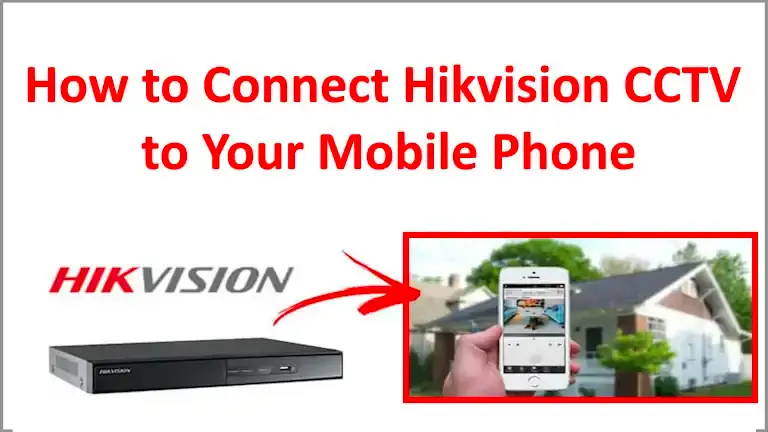
This step-by-step guide will walk you through the process of connecting your Hikvision CCTV system to your mobile phone, ensuring that you can keep an eye on your property anytime, anywhere.
How to Connect Hikvision CCTV to Your Mobile Phone
Step 1: Prepare Your Equipment
Before you begin the setup process, ensure that you have the necessary equipment ready. This includes a Hikvision CCTV system with compatible cameras, a mobile phone (iOS or Android), a stable internet connection, and the Hik-Connect app, which you can download from the App Store or Google Play Store.
Step 2: Connect Your CCTV System to the Internet
To connect Hikvision CCTV to Your Mobile Phone, your Hikvision CCTV System needs to be connected to the internet. There are a few ways to achieve this:
- Wired Connection: Connect your CCTV system to your router using an Ethernet cable. Ensure that the connection is secure and stable.
- Wireless Connection: If your CCTV system supports Wi-Fi connectivity, follow the manufacturer’s instructions to connect it to your Wi-Fi network. Make sure the signal strength is sufficient for reliable remote access.
Step 3: Enable DHCP and Obtain DNS automatically
After connecting to the Internet connection go to the network settings of HIKVISION DVR or NVR and enable the DHCP, and also enable Obtain DNS automatically.
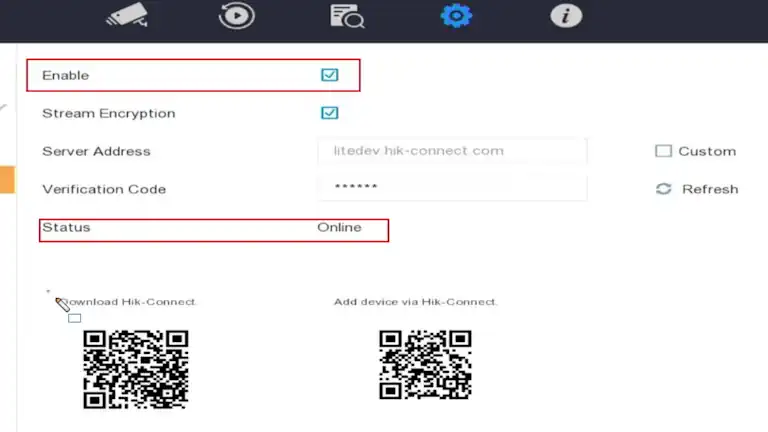
Step 4: Enable Hik-Connect
To enable the Hik-Connect option, go to the Network settings of the DVR or NVR. You will see the Hik-Connect option, click on it, and then click on the enable check box as shown in the image below. Make sure the Status is Online.
Step 5: Set Up a Hik-Connect Account
To connect your Hikvision CCTV system to your mobile phone, you need to create a Hik-Connect account. Here’s how:
- Install the Hik-Connect app from the Google Play Store and open the app on your mobile phone.
- Tap the “Register” or “Sign Up” button to create a new account.
- Provide the required information, such as your email address and a strong password.
- Follow the on-screen prompts to complete the registration process.
Step 6: Connect Hikvision CCTV to Your Mobile Phone
To connect Hikvision CCTV to Your Mobile Phone, you need to follow some below mention steps:
- Log in to the Hik-Connect app using your newly created account credentials.
- Tap on the Add device within the Hik-Connect app.
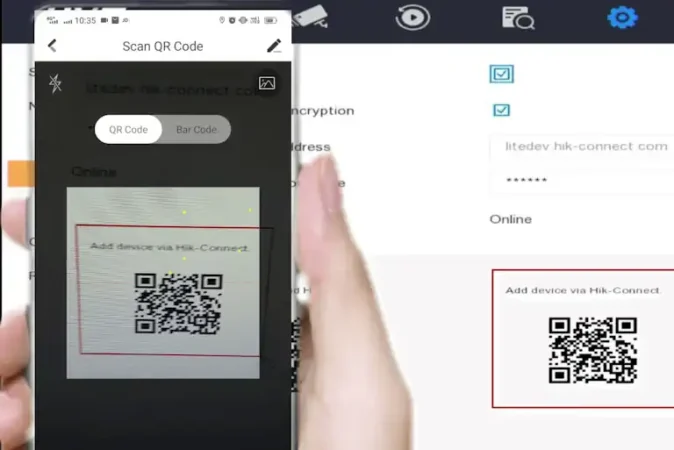
- Click on “Add Device” QR Code scanner will open.
- Go to the DVR Hik-Connect setting and scan the “Add device via Hik-connect” QR Code.
- Click on “Add” and then click on the next button. Now you can rename your device and save the device.
- Click on the saved device, and now you can watch your Hikvision CCTV on your phone.
Step 7: Use Remote Monitoring Features
Once connected, you can:
- View Live Video from all your cameras.
- Playback Recordings from past dates and times.
- Take Snapshots or download CCTV footage directly to your phone.
- Enable Email Notifications, Messages and App Notifications for motion detection or alerts.
Troubleshooting Tips
- If status shows Offline, check internet settings, router, and DNS configuration.
- Make sure your DVR/NVR firmware is updated to the latest version.
- If QR code scanning fails, you can also manually add the device by entering its serial number.
- For remote access outside your local network, ensure P2P (Platform Access) is enabled.
Conclusion
By connecting your Hikvision CCTV system to your mobile phone, you gain the freedom and peace of mind to monitor your property from anywhere in the world.
With just the Hik-Connect app and a proper internet connection, you can view live video, check old recordings, and receive instant alerts on your smartphone.
This simple setup not only improves security but also ensures that you are always in control of your home or business — right from your pocket.