Picture this: You’ve just spent hours fishing a network cable through a cramped ceiling, you plug your IP camera into the PoE switch, and… nothing. No lights, no network activity, just a completely dead camera.
I ran into this exact issue recently. I was working on a setup where the PoE (Power over Ethernet) simply refused to work. The switch wasn’t sending power to the camera, but I already had a standard LAN cable perfectly routed through the walls.
My only option was to bypass the PoE switch entirely. I grabbed a standard 12V power supply and had to figure out how to manually push that power directly through the unused pairs inside the existing Ethernet cable.
If you have ever found yourself in a similar bind—whether it’s no power in PoE port, a lack of equipment on-site, or a tight budget—don’t panic. In this guide, I will show you the exact trick I used to crimp a custom RJ45 connector and safely run both data and power through a single, standard LAN cable.
What’s Actually Inside That Cable? (The RJ45 & LAN Anatomy)
Before we start blindly snipping wires, let’s take a quick look at what we are actually working with. You already know the RJ45 connector—it’s the standard clear plastic plug on the ends of your network cable that bridges your IP CCTV Camera to your NVR or router. But the real magic happens inside the wire.
Whether you pulled standard CAT5e or heavier CAT6 through your walls, the guts are exactly the same. If you carefully strip back that outer protective jacket, you’ll find:
- 4 twisted pairs (each pair has one solid color and one striped color)
- 8 individual tiny wires
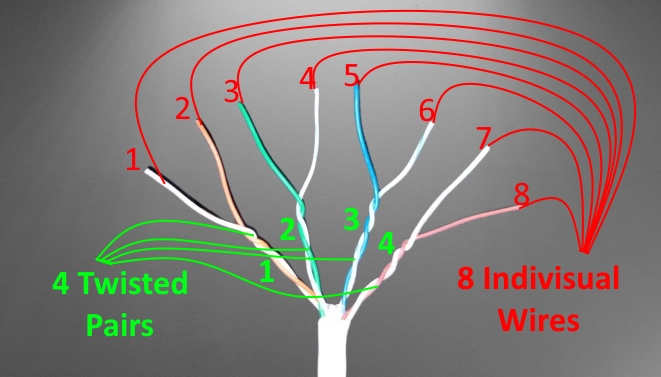
Normally, if you are wiring up a high-speed Gigabit network for computers, your system demands all 4 pairs (all 8 wires) working together to push heavy data. However, in a standard IP CCTV camera, 2 pairs carry the data and the other 2 pairs carry the power.
Here is the secret that saved my installation: Most IP CCTV cameras do not need Gigabit speeds. They run flawlessly on standard “Fast Ethernet” (10/100 Mbps). And Fast Ethernet only requires exactly two pairs (4 wires) to transmit your video feed.
If we don’t have a PoE switch, or the PoE switch isn’t sending power, the two wire pairs normally reserved for PoE are now completely unused. Instead of letting those four wires sit idle, we are going to repurpose them to manually transmit 12V DC power directly from an adapter to the camera.
Standard RJ45 Wiring: The T568B Method
For networking and IP CCTV installation, the global industry standard for crimping RJ45 ends is the T568B standard.
When you look at the RJ45 connector from the top (with the gold pins facing up and the plastic locking clip facing down), the pin sequence from left to right must be exactly as follows:
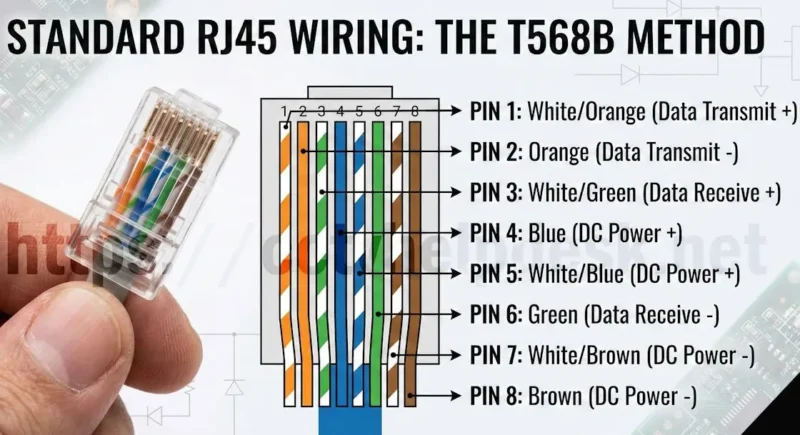
- White/Orange (Data Transmit +)
- Orange (Data Transmit -)
- White/Green (Data Receive +)
- Blue (DC Power +)
- White/Blue (DC Power +)
- Green (Data Receive -)
- White/Brown (DC Power -)
- Brown (DC Power -)
Crucial Rule: Always wire both ends identically (known as a “Straight-Through” cable).
In a normal, data-only setup, messing up the wire sequence just means the network won’t detect the camera, it won’t come online, and you waste an hour pulling your hair out troubleshooting.
But because we are now injecting raw 12V power into this cable, the stakes are much higher.
⚠️ MAJOR WARNING: If your wiring sequence is wrong and you accidentally send that DC power down the data pins (the Orange or Green pairs) instead of the dedicated power pins, you won’t just lose connection—you will instantly short out and fry your camera’s internal circuitry. You could even damage the port on your NVR or router. Take your time and double-check that your color sequences match perfectly on both ends before you plug anything into a power source!
Tools Required for the Job
To do this right, you need the proper tools. Avoid using household scissors or pliers, as they will ruin the delicate copper wires.
- RJ45 Connectors: Use high-quality CAT5e or CAT6 connectors depending on your cable.
- RJ45 Crimping Tool: A specialized tool that presses the gold pins into the wires.
- Cable Stripper: For removing the outer jacket safely.
- CAT5e or CAT6 Cable: Always opt for Pure Copper cable (more on this later).
- DC Pigtail Connectors (Male & Female): These are used to adapt the bare wires into a standard 12V barrel plug.
- 12V SMPS Power Supply / Adapter: To provide the actual power.
- (Optional but recommended) Digital Multimeter: To test voltage at the camera end.
- (Optional but recommended) Electrical Tape or Heat Shrink: To protect your splices.
How to Make an RJ45 Connector
(Note: If you are splitting the cable for power, read Section 6 first).
- Strip the Jacket: Remove ~1.5 inches of the outer PVC jacket. Be careful not to nick the inner wires (if you do, cut the cable and restart).
- Untwist & Straighten: Separate the twisted pairs and pull each wire completely straight with your fingers.
- Arrange Wires (T568B): Pinch the wires flat and line them up left to right:
- White/Orange, Orange, White/Green, Blue, White/Blue, Green, White/Brown, Brown.
- Cut Evenly: Snip the wire ends perfectly straight across with your crimper blade, leaving about 0.5 inches of exposed wire.
- Insert into Connector: With the RJ45 locking clip facing down, slide the wires all the way in.
- Check 1: All 8 wires must hit the very front of the plastic channels.
- Check 2: The outer PVC jacket must sit inside the back of the connector so it gets secured.
- Crimp: Push the connector into your crimping tool and squeeze the handles firmly until the pins bite down into the wires.
Passive PoE: How to Manually Run 12V Power Over a LAN Cable
This requires separating the wires before they go into the RJ45 connector.
Splicing the Cable
- Strip back about 3 inches of the outer jacket.
- Separate the pairs.
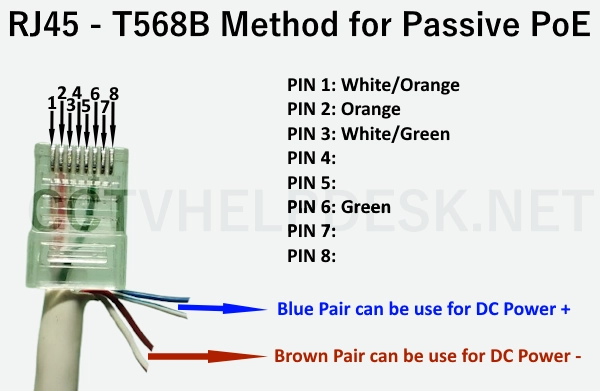
- Take the Orange pair and Green pair. These are your Data Pairs. Insert only these four wires into the RJ45 connector in their correct pin slots (Pins 1, 2, 3, and 6). Crimp the connector.
- You will now have the Blue pair and Brown pair hanging outside the RJ45 connector.
Wiring the Power Pairs
Because thin LAN wires cannot carry a lot of current individually, we double them up to increase the thickness (gauge) of the wire, reducing electrical resistance.
- Positive (+): Strip the tips of the Blue wire and White/Blue wire. Twist the copper together.
- Negative (–): Strip the tips of the Brown wire and White/Brown wire. Twist the copper together.
Connections at the Camera Side
- Plug the freshly crimped RJ45 connector into the IP Camera’s network port.
- Connect your twisted Blue wires (+) to the RED wire of a DC Male Pigtail.
- Connect your twisted Brown wires (-) to the BLACK wire of the DC Male Pigtail.
- Plug the Male DC pigtail into the camera’s power port. Tape up or heat-shrink your splices to prevent short circuits.
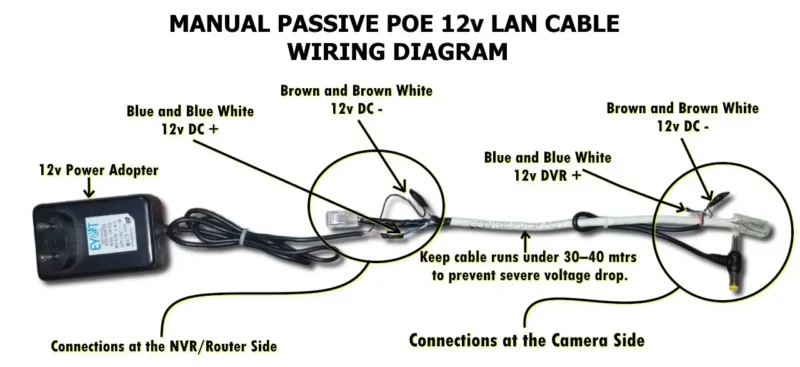
Connections at the NVR/Router Side
- Plug the RJ45 connector into your NVR, router, or non-PoE switch.
- Connect the twisted Blue wires (+) to the Positive terminal of your 12V SMPS (or a Female DC pigtail connected to a power adapter).
- Connect the twisted Brown wires (-) to the Negative/Ground terminal.
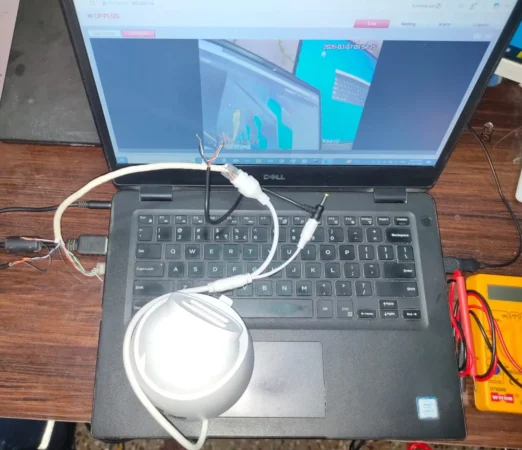
Result: The setup is working perfectly, as shown in the image below
⚠️ CRITICAL WARNING: Passive PoE
Verification: Double-check that color sequences match perfectly on both ends before applying power.
Distance Limit: Keep cable runs under 30–40 meters (100–130 feet) to prevent severe voltage drop.
Wiring Risk: Use only dedicated power pins. Sending DC power through data pins (Orange/Green pairs) will instantly fry your camera and potentially damage your NVR or router.
Important Technical Precautions
While this method is incredibly useful, it is essentially a “hack” of the standard networking rules. It comes with inherent physical limitations that you must respect.
1. The Distance Limit and Voltage Drop
Electricity loses energy (voltage) as it travels through wire. This is called voltage drop. Standard LAN cable wires are very thin (usually 23 or 24 AWG). If you run 12V DC through these thin wires for 50 meters, only 9V or 10V might reach the camera.
- The Result: The camera might turn on during the day, but the moment the IR night vision lights kick in (drawing more power), the voltage will crash, and the camera will constantly restart. Keep runs under 40 meters.
If you need to calculate voltage drop, this tool makes it easy: Voltage Drop Calculator.
2. Use Pure Bare Copper Cable (Avoid CCA)
Never use CCA (Copper Clad Aluminum) cable for this method. Aluminum has a much higher electrical resistance than copper. Using CCA cable will result in massive voltage drops, overheating wires, and cameras dropping offline. Always check the box to ensure your cable is solid Bare Copper.
3. Check Power Requirements
This method is strictly for standard fixed 12V IP bullet or dome cameras.
- Do not use this method for PTZ (Pan-Tilt-Zoom) cameras, as the motors draw too much power.
- Do not use this for massive 8MP/4K cameras with heavy, long-range IR arrays.
4. Verify with a Multimeter
Before plugging the DC male jack into your expensive camera, take a digital multimeter and measure the voltage at the tip of the connector. Ensure it reads exactly 12V (or very close to it, like 11.5V) and ensure the polarity is correct (positive inside the barrel, negative outside).
A Better Budget Alternative: Passive PoE Injector Splitters
If you want the benefits of this method but want to avoid the messy process of manually stripping, twisting, and taping wires, spend a few dollars on a Passive PoE Injector/Splitter Kit.
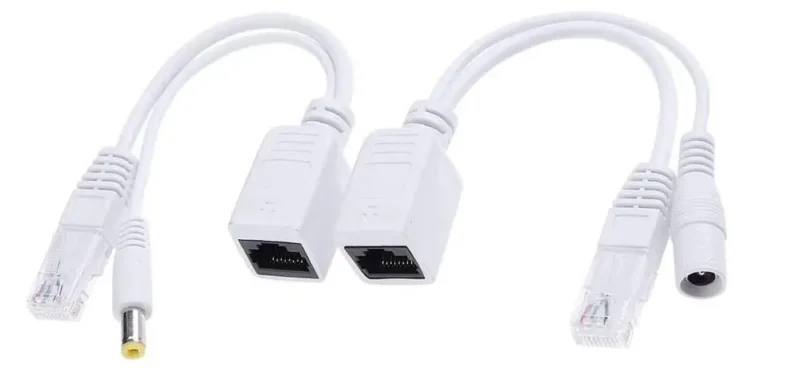
These are cheap cable adapters that do exactly what we just described, but internally.
- You plug your power adapter and network cable into the “Injector” side.
- You run a completely standard, uncut LAN cable to the camera.
- At the camera side, you plug the cable into the “Splitter,” which breaks it back out into an RJ45 data plug and a 12V DC barrel plug.
It is much cleaner, faster, and slightly safer than manual splicing, while still avoiding the cost of a full PoE switch.
9. Common Problems & Troubleshooting
| Symptom | Probable Cause | Solution |
| Camera will not turn on at all | Polarity reversed, or broken wire splice. | Check connections. Ensure Blue is + and Brown is -. Use a multimeter to verify 12V is reaching the end. |
| Camera works during the day, goes offline at night | Voltage drop due to IR LED power draw. | The cable run is too long. Shorten the cable, use a thicker gauge power wire, or upgrade to an Active PoE switch. |
| Camera powers on, but Network does not detect it | RJ45 crimping error. | Cut off the RJ45 ends and re-crimp them. Ensure you used the Orange and Green pairs for data (Pins 1, 2, 3, 6). |
Conclusion
Understanding how to manipulate the infrastructure you have on-site is what separates an amateur from a resourceful technician. Now you know exactly how to make an RJ45 connector, how to bypass the need for an expensive PoE switch, and how to harness the unused 4 pairs of a LAN cable to carry both data and 12V power.
This technique is a fantastic tool to keep in your back pocket for small setups, residential jobs, and budget-restricted clients. However, it is vital to remember the limitations: keep your distances short, use pure copper cable, and watch out for voltage drop.
For large-scale, commercial, or professional installations, an Active PoE switch is always the superior, safer, and more reliable choice. But when you are in a pinch, this DIY manual PoE method can absolutely save your project.
Proper wiring means fewer call-backs, stable cameras, and happy customers.