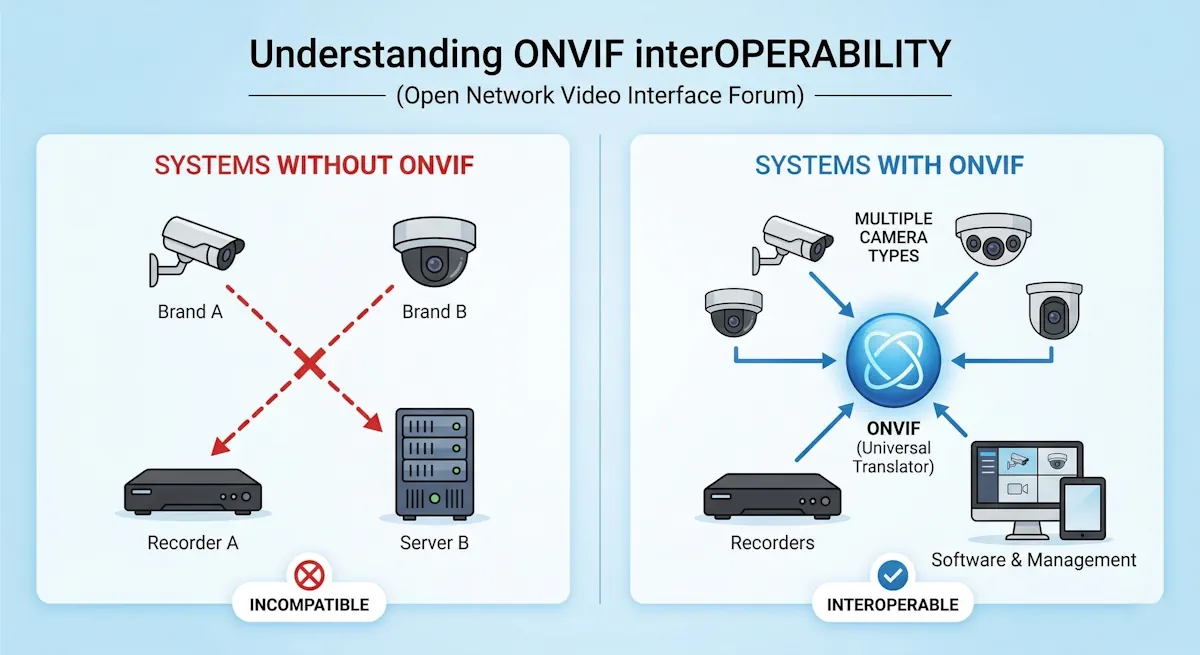
Downloading CCTV footage from a Dahua DVR using a computer or laptop web browser is very easy once you know the correct steps. Many people still get confused because every DVR menu looks a little different. In this detailed guide, we will explain how to download CCTV footage from a Dahua DVR using Internet Explorer (IE) or Microsoft Edge (IE Mode).
By the end of this article, you will know how to connect to your DVR, log in, find your camera channel, select a time range, and save the video files to your computer safely.
Why Use a Web Browser for Downloading CCTV Footage?
Before we go into the steps, let’s quickly understand why using a browser is helpful:
- No extra software needed: You don’t have to install SmartPSS or other Dahua applications.
- Direct access: You can log in to your DVR from any computer on the same network.
- Simple export: You can select cameras and date/time ranges directly and download.
- Good for backup: If you need urgent evidence, downloading by browser is fast.
👉 Keep in mind: Dahua DVRs usually work best with Internet Explorer (IE). Since IE is outdated, you may need to enable Internet Explorer Mode in Microsoft Edge.
How to Download CCTV Footage by WEB Browser on Dahua DVR
Here are Easy steps to Export/Download CCTV footage from a Dahua DVR using a Computer or Laptop web browser:
Step 1. Connect to the Dahua DVR:
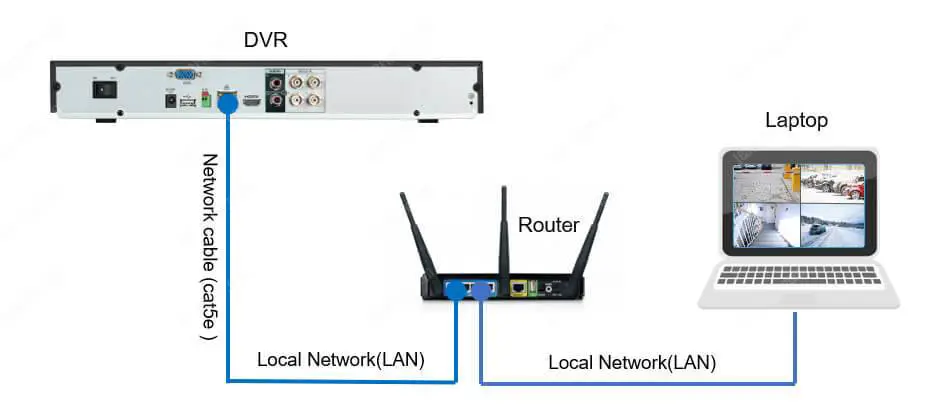
Open your Web browser and type the IP address of the DVR in the Browser address bar. Make sure your computer is connected to the same network as the Dahua DVR.
Step 2. Log in to the DVR:
Enter the username and password when prompted. If you didn’t set up your own username and password, use the default admin and password provided by Dahua.
Step 3. Find the camera number:
Go to Live View and check on which channel number your desired camera is working on.
Step 3. Create a folder for CCTV Footage Download:
Create a folder on your computer where you want to save the downloaded footage.
Step 4. Access the Backup interface to download the cctv footage:
Click on the “Backup” section, usually located on the 2nd Page. The name and location may vary depending on your Dahua DVR model and firmware version.
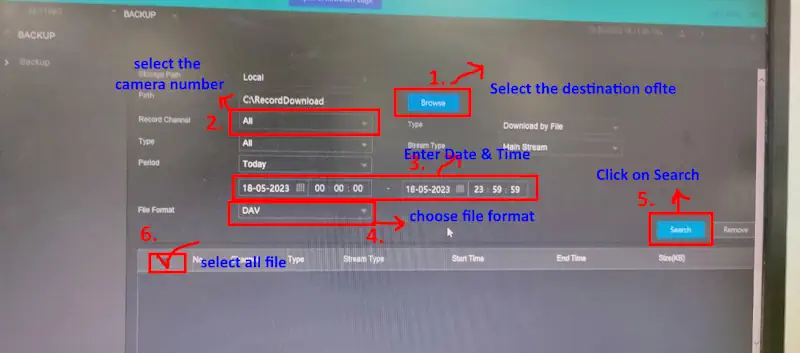
Choose the CCTV footage download path by clicking on the “Browse” button.
Select the Camera number from the Record channel, you can select all cameras or a single camera that you want to download CCTV footage on your PC/Laptop.
Choose the “ Start Date – Time and End Date – Time” range for the footage you want to download.
Choose the cctv footage file format from the “File Format” option.
Click on the “Search” button, All required cctv footage lists will appear. Now select all the footage from the footage list and Click on the “Backup” button that appears at the bottom of the page.
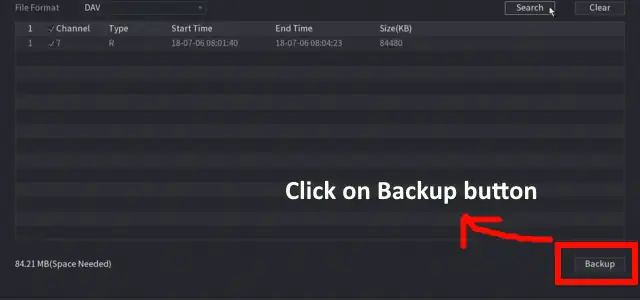
Now View Backup will appear by clicking on the backup button. To check downloading progress click on “View Backup. When all CCTV footage disappears from this list, it means all cctv footage has been downloaded on your pc.
Extra Tips for Smooth Download
- Use IE Mode in Microsoft Edge: Since Internet Explorer is discontinued, Dahua recommends using Microsoft Edge in IE Mode for better compatibility.
- Install Dahua Web Plugin: The first time you log in, the browser may ask you to install a small plugin. Allow and install it for smooth playback and download.
- Check Time Sync: If you cannot find the right video, confirm that your DVR time is correct. Wrong time settings can make searching difficult.
- Use MP4 Format: For easy sharing with police or clients, choose MP4 format.
- Backup Important Clips Quickly: Once the DVR hard disk overwrites old data, lost footage cannot be recovered. Always save important clips in time.
Common Problems and Solutions
Problem 1: Cannot access DVR in browser
- Check if your PC and DVR are on the same network.
- Ping the IP address of the DVR to confirm connectivity.
Problem 2: Login page not opening
- Make sure you are using http://IPaddress format.
- Try changing the port in DVR settings (e.g., 80).
Problem 3: Plugin not installing
- Run the browser as administrator.
- Temporarily disable the antivirus if it blocks the installation.
Problem 4: Download stuck or failed
- Try downloading fewer files at once.
- Check if DVR storage is healthy.
FAQs About Downloading Dahua DVR Footage
Q1. Can I download footage remotely over the internet?
Yes, if your DVR is configured with a public IP or P2P (Easy4IP). But speed depends on your internet connection.
Q2. Which browser works best for Dahua DVR?
Internet Explorer works best. For modern systems, use Microsoft Edge with IE Mode.
Q3. How do I play downloaded DAV files?
Use Dahua’s Smart Player or convert to MP4 using Dahua tools.
Q4. Can I download directly to a pen drive?
Yes, if you set the download path to the USB drive. But make sure there is enough space.
Q5. What if my DVR shows no files during search?
Check if recording was enabled for that camera and time. Also confirm the system clock.
Conclusion
Downloading CCTV footage from a Dahua DVR using a web browser is simple once you know the steps. Just connect your DVR and PC on the same network, log in via the browser, select your camera and date/time, and save the files.
By using the Backup feature, you can quickly export important CCTV recordings for police evidence, office reports, or personal use.
Remember:
- Always save important clips before the DVR overwrites them.
- Use MP4 format for easy playback.
- For best results, use Internet Explorer or Edge with IE Mode.
This method is fast, reliable, and does not require installing heavy software.
Read also:
- How to Download CP Plus Camera Recordings
- How to download CCTV footage of Dahua DVR from Smartpass
- How to Download CCTV Footage from Hikvision DVR through Web Browser
- How to Download CCTV Footage from Hikvision DVR to Pendrive
- How to Download CCTV Footage from QTVue NVR via Web Browser
Note:- Please be aware that the steps and options provided may differ slightly based on your Dahua DVR model and firmware version. Additionally, certain DVR configurations may necessitate additional settings or permissions in order to enable the download of footage through a web browser.