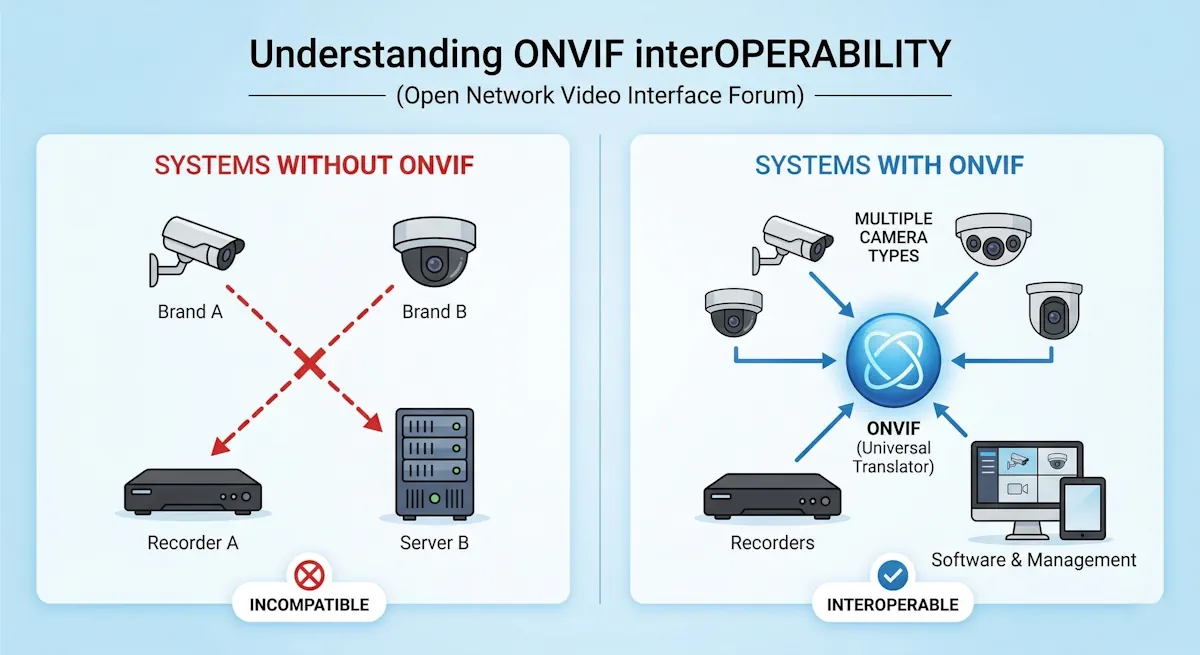
If you are using a CP Plus DVR or NVR and want to Download CP Plus Camera Recordings for backup, sharing, or investigation, this step-by-step guide will help you.
We’ll show you three simple methods to download recordings from your CP Plus system:
- Directly to a Pen Drive from DVR/NVR
- Through a Web Browser (from Computer/Laptop)
- Using CP Plus KVMS Pro Software
About CP Plus CCTV Systems
CP Plus is a popular brand for CCTV surveillance in India. Their DVRs, NVRs, and IP cameras are known for reliability and easy operation.
Having a backup of important footage can be very helpful in case of theft, evidence collection, or technical issues.
Check Date and Time Before Downloading Footage
Before you start downloading your CP Plus camera recordings, always check the date and time shown on your DVR/NVR screen.
Many times, the system clock may be wrong because of a power cut, battery issue, or manual reset, and this causes the recorded video time to be incorrect.
✅ Steps to Verify:
- Look at the date and time displayed on your DVR/NVR live screen.
- Compare it with your mobile or computer clock.
- If there is a difference, note it down carefully.
You can use our free tool to calculate the exact difference:
👉 Time Difference Calculator - If you find the DVR time is wrong, you can correct it for future recordings by following this guide:
👉 How to Fix Wrong Date and Time in CP Plus DVR
⚠️ Important Note:
Even after you fix the date and time in your DVR, the old recordings will still show the wrong timestamp.
The time correction only applies to new recordings made after the fix.
So, when downloading old footage, use the time difference result from the calculator to understand which exact time range you need to search and back up.
For example:
If your DVR was running 30 minutes behind, and the real incident happened at 2:00 PM, you should search for 1:30 PM in your DVR playback.
Method 1: Download Footage from CP Plus DVR/NVR to Pen Drive
This is the easiest and most common method used directly on the DVR/NVR machine.
Step 1: Insert the Pen Drive: Locate the USB port on your CP Plus DVR/NVR (usually on the front panel). Insert a clean pen drive (preferably formatted in FAT32).
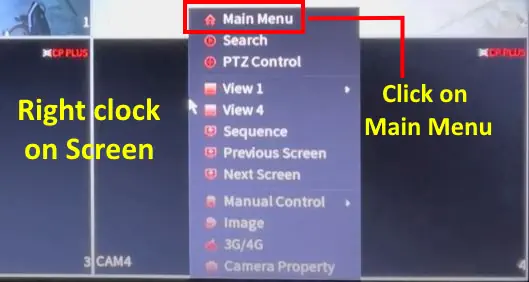
Step 2: Open the Main Menu: Use the mouse connected to DVR and right-click → select Main Menu. Enter your username and password to log in.
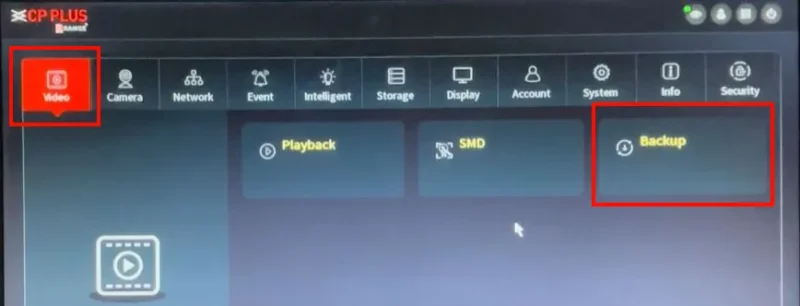
Step 3: Go to Backup Option: Click on Backup from the main menu.
Step 4: Select Channel(s): Choose the camera channel(s) you want to back up. You can also select “All” to download recordings from every camera.
Step 5: Choose Date and Time Range: Set the Start Time and End Time for which you want to download the recording.
Step 6: Select File Format: From the File Format option, choose ASF, AVI, or MP4.
Tip: These formats play easily on most computers.
Step 7: Search & Select Files: Click Search to view available recordings. Select the required files from the list.
Step 8: Start Backup: Click Start Backup. The DVR will begin copying files to your pen drive.
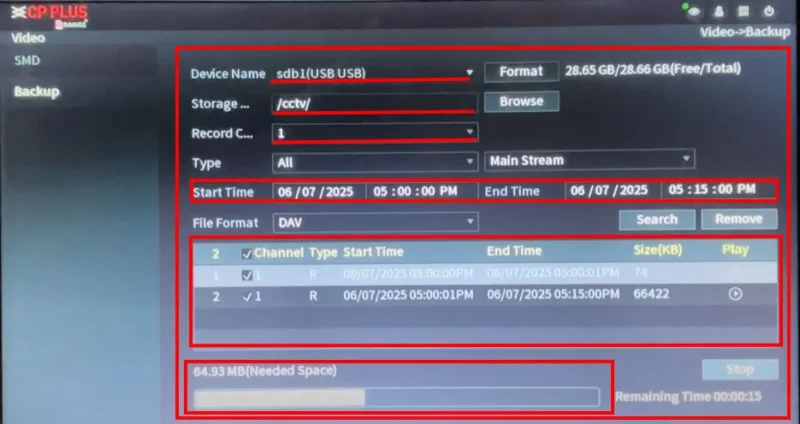
Step 9: Wait & Eject: Once the process is complete, a message will appear. Click OK and safely eject the pen drive.
Now your CP Plus CCTV footage is saved on your pen drive.
You can connect it to your computer or laptop and play it with VLC Media Player or CP Plus Smart Player.
Method 2: Download CP Plus CCTV Footage through Web Browser
You can also download CCTV footage directly on your computer using your DVR’s IP address.
Step 1: Find DVR IP Address: Go to DVR → Main Menu → Network Settings. Note the IP address (for example: 192.168.0.52).
Step 2: Open a Web Browser: Open Edge browser in Internet Explorer mode (recommended for CP Plus). In the address bar, type your DVR’s IP and press Enter.
Step 3: Login to DVR Web Interface: Enter your Username and Password, then click Login.
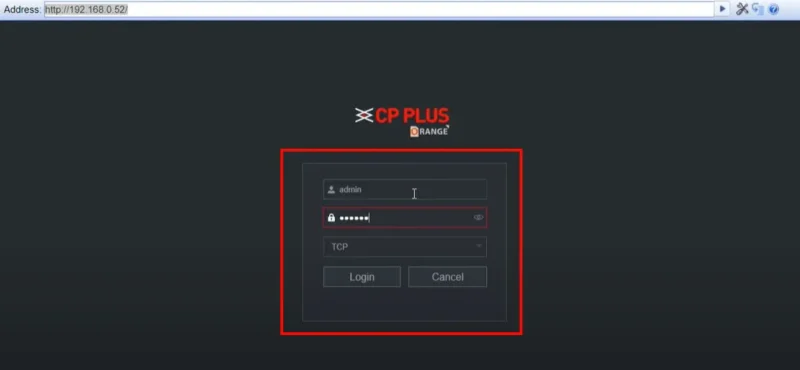
Note: Verify footage availability before backing up. Go to the Playback tab, select the camera, date, and time, then click Search or Play. Once confirmed, proceed to Step 4.
Step 4: Open Backup Section: Click on the Backup tab from the menu.
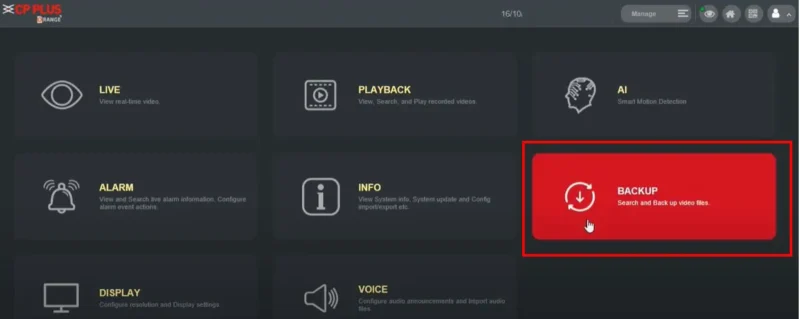
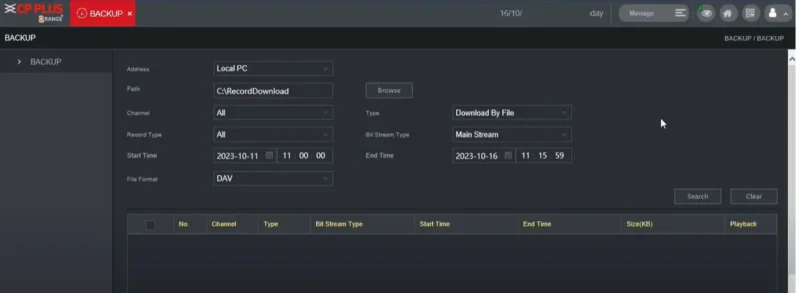
Step 5: Choose Save Location & Set Recording Details: Click on Browse to select the folder where the footage will be saved. Then select the channel, date, start time, and end time. Choose the file format (ASF or AVI), and finally click on the Search button.
Step 6: Select the Files: Select the all cctv fooatge files from list and click on Backup/Download button. The download will begin, and when finished, your CP Plus footage will be saved on your PC.
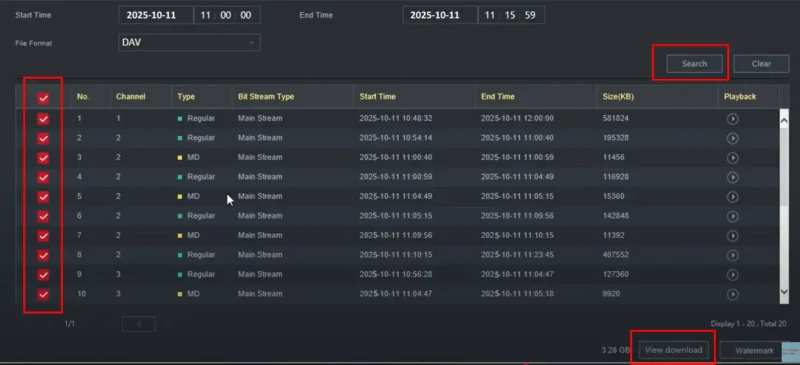
You can now open downloaded folder and view the recordings using VLC Player or the CP Plus Player Tool. you can download CPPLUS SmartPlayer from Software page or official website.
Method 3: Download CP Plus Footage Using KVMS Pro Software
The KVMS Pro Software is an official CP Plus desktop tool that allows you to manage multiple DVRs/NVRs, view live cameras, playback recordings, and download CCTV footage to your computer.
If you haven’t installed it yet, follow this detailed guide:
KVMS Pro Free Download, Install & Configure – Step by Step Guide
Step-by-Step Guide to Download Footage:
- Step 1: Open KVMS Pro Software: Launch the KVMS Pro app on your PC. Login with your username and password.
- Step 2: Add Your DVR/NVR Device: If your device is not already added, click Device Management → Add Device. Enter your DVR’s IP address, username, and password → Click Add.
- Step 3: Go to Playback Section: Click on Playback from the left panel.
- Step 4: Select Device and Channel: Choose your DVR/NVR, select the channel (camera number) and the date for which you want to download footage.
- Step 5: Search Footage: Click Search. You’ll see the timeline for available recordings.
- Step 6: Select the Time Range: Drag the bar or select the start and end time of the footage you want to export.
- Step 7: Click on Download Icon: Click the Download button at the bottom. A new window will appear.
- Step 8: Choose File Format & Location: Select ASF, MP4, or AVI as file format and choose the folder where you want to save the video.
- Step 9: Start the Download: Click Start Download and wait until the progress bar completes.
Once finished, your CCTV footage will be saved in your selected folder on your computer.
Tips for Smooth Backup & Playback
- Always use a reliable pen drive or external hard drive.
- Prefer ASF/AVI/MP4 formats for easy playback.
- To view .DAV files, use the CP Plus Smart Player or KVMS Pro Playback feature.
- Regularly backup important recordings to avoid data loss.
Conclusion
Download CP Plus Camera Recordings is simple and flexible — whether you use a Pen Drive, Web Browser, or KVMS Pro Software.
These methods ensure that your security footage is safe, accessible, and ready for review whenever needed.
Frequently Asked Questions (FAQs)
Q1. Can I use any pen drive for backup?
Yes, but use a good-quality, virus-free pen drive (8GB or higher recommended).
Q2. Which video format is best for download?
Use ASF, MP4, or AVI for smooth playback.
Q3. Can I download recordings from a specific date/time?
Yes, all three methods allow selecting specific date and time ranges.
Q4. How can I play CP Plus videos on PC?
Use VLC Player or CP Plus Smart Player/KVMS Pro.
Q5. Can I download all cameras’ recordings at once?
Yes, in both DVR and Web Interface, you can choose “All Channels”.