When your CCTV system suddenly shows “HDD Not Found” or “Hard Drive Error”, it means your recorder is not able to detect the storage device. Because of this, your system stops recording footage.
This problem is different from normal recording issues. Here, the DVR/NVR cannot communicate with the cctv hard disk at all.
If you are searching for a DVR HDD not detected fix or a hard drive error solution in NVR, this step-by-step guide will help you solve it.
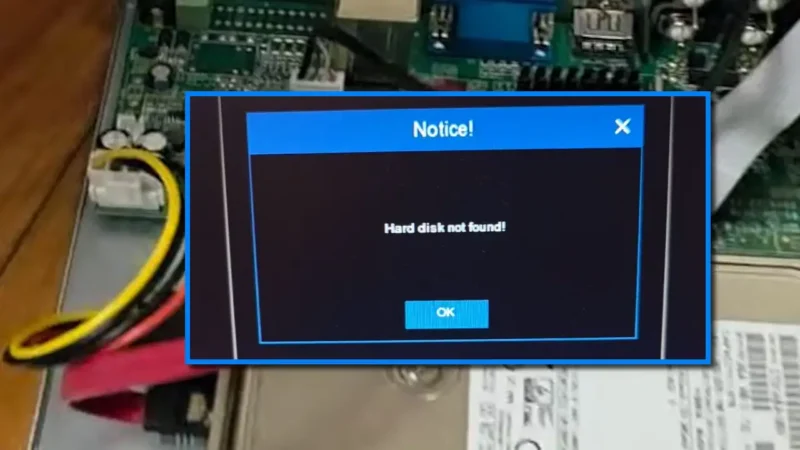
HDD Not Found or Hard Drive Error
Before going into detailed solutions, here are the most common reasons for HDD not detected in DVR/NVR:
- Loose or damaged SATA cable
- Weak or faulty power supply
- Hard drive not formatted (not initialized)
- Incompatible hard drive (non-surveillance HDD)
- Dead or physically damaged HDD
- Dust, overheating, or internal hardware issue
- Faulty DVR/NVR motherboard or SATA port
You can now check each issue step-by-step to find and fix the exact problem.
1. Inspecting the SATA Data and Power Cables
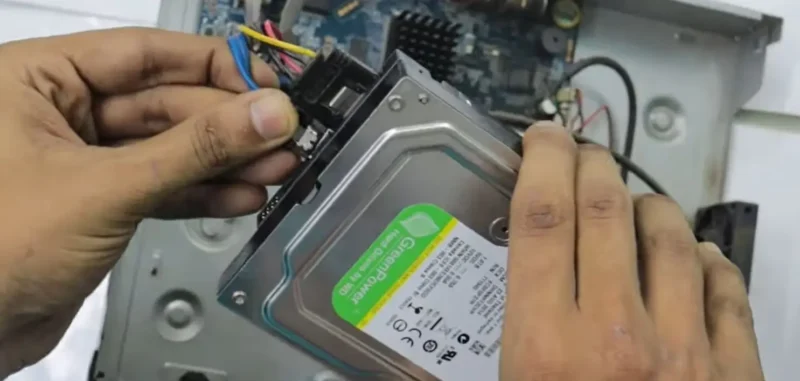
Every internal hard drive relies on two specific connections. The SATA Data cable (usually thin and red/blue) transfers video data, while the SATA Power cable (wider with multiple colored wires) provides electricity from the motherboard.
Detailed Solution:
- Safety First: Power down the DVR/NVR and unplug the power brick from the wall.
- Open the Chassis: Remove the small screws on the sides or back to slide off the cover.
- Reseat Connections: Unplug both the data and power cables from the HDD and the motherboard.
- Clean the Contacts: Use a can of compressed air or a soft, dry brush to remove dust from the ports.
- Swap Test: If you have a spare SATA cable (common in desktop PCs), try replacing the existing one to rule out a hidden internal wire break.
2. Testing the Power Supply Unit (PSU)
A common misconception is that if the DVR lights are on, the power supply is fine. However, a hard drive requires a significant “peak current” to start its internal platters spinning. An aging 12V adapter might provide enough voltage for the motherboard but fail under the load of the HDD.
Detailed Solution:
- The Vibration Test: Place your hand on the hard drive immediately after plugging in the DVR. You should feel a slight vibration or a “whirring” sound as the disk spins up.
- Check the Rating: Ensure your adapter is rated for at least 12V 2A (or higher if you have multiple drives).
- Try a Replacement: If the disk feels “dead” or cold, swap the power adapter with a known working one of the same voltage. Cheap power bricks are the #1 cause of “Hard Drive Error” in older systems.
3. Hard Drive Initialization (The Formatting Fix)
If you have just installed a brand-new hard drive, the DVR will likely report an “Error” or “Uninitialized” status. This is because the DVR uses a specific file system (often Linux-based) that differs from Windows.
Detailed Solution:
- Log into your DVR/NVR using the admin password.
- Navigate to Main Menu > Storage > HDD Management (labels may vary by brand).
- Check the status. If it says “Error” or “Uninitialized,” select the checkbox for that drive.
- Click “Init” or “Format.”
- Warning: This process erases everything on the drive. Once finished, the status should change to “Normal” or “OK.”
4. Ensuring Hardware Compatibility
Many users attempt to save money by using “Desktop” hard drives (like WD Blue or Seagate Barracuda). These are designed to run 8 hours a day, not 24/7. When they overheat or fail to keep up with multiple high-def streams, the DVR may drop the connection.
Detailed Solution: Ensure you are using Surveillance-Grade drives designed for high-heat, constant-write environments:
- WD Purple: Optimized for AllFrame technology to reduce frame loss.
- Seagate SkyHawk: Built for high-workload ratings and NVR environments. Using the wrong drive type is a leading cause of premature disk death and intermittent detection errors.
Note: To avoid frequent failures, recording issues, or data loss, you should clearly understand these differences by reading this guide on The Difference Between Computer HDD and CCTV HDD.
5. Identifying a Dead Hard Drive (Mechanical Failure)
Hard drives are mechanical devices with spinning disks and moving read/write heads. Over time, these parts wear out.
Signs of Failure:
- The “Click of Death”: A repetitive rhythmic clicking sound coming from inside the unit.
- Beeping: Some DVRs will emit a loud beep code when the HDD fails to respond.
- Freezing: The DVR interface becomes sluggish or freezes when you try to access the HDD menu.
Solution: If the drive is clicking or failing to spin despite a confirmed power supply, the drive is likely physically damaged. Data recovery is expensive, so it is usually more cost-effective to replace the unit.
6. Managing Heat and Environmental Factors
Dust is an insulator; it traps heat. If your DVR is stuffed into a tight cabinet or a dusty closet, the hard drive’s internal controller can overheat, causing it to “drop off” the system.
Detailed Solution:
- Ventilation: Ensure the DVR fans (if present) are spinning and the side vents are clear.
- Cleaning: Use compressed air to blow out the “carpet” of dust that often forms on the motherboard.
- Placement: Move the recorder to a well-ventilated area. High temperatures are the silent killers of surveillance storage.
7. Troubleshooting the Motherboard and SATA Ports
In rare cases, the issue isn’t the drive or the cable, but the SATA controller on the DVR’s motherboard itself.
Detailed Solution:
- Change Ports: If your DVR supports multiple drives, plug the SATA cable into a different port on the motherboard.
- The PC Test: Connect the CCTV hard drive to a desktop computer. If the computer’s BIOS can see the drive (even if Windows can’t read the files), the drive is healthy, and your DVR motherboard is likely faulty.
Once you’ve resolved the connection or hardware error, use our CCTV HDD Calculator to ensure your drive has the right capacity for your needs. Proper storage planning helps prevent future “Disk Full” errors and keeps your surveillance system running smoothly.
Final Words
Fixing an “HDD Not Found” error is usually a process of elimination. Start with the easiest and cheapest fixes—checking the cables and the power adapter—before assuming the hard drive is dead. Consistent maintenance, such as checking your recording status once a week, can prevent you from discovering a drive failure only after an incident has occurred.