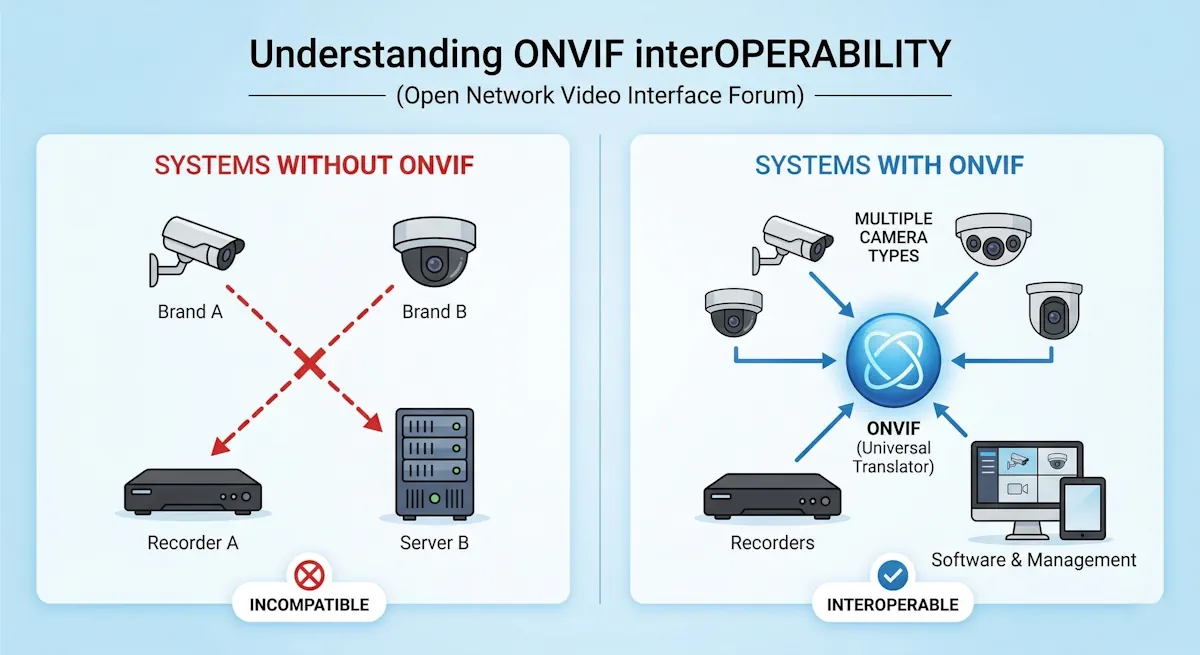
Dahua SmartPSS is a powerful software designed to enhance the functionality of Dahua surveillance systems. Its user-friendly interface makes it effortless to monitor live video streams, review recorded footage, and customise various settings.

Whether you’re a security expert or a homeowner, Dahua SmartPSS is a valuable tool for effectively managing your surveillance system. In this article, we will guide you step-by-step on How to Download Dahua SmartPSS Software and Install it?
System Requirements for Dahua SmartPSS Software
Before proceeding with the download and installation, it is essential to ensure that your computer meets the system requirements for Dahua SmartPSS. Here are the minimum requirements:
| Item | Requirements |
|---|---|
| OS | Windows 7, Windows 8, Windows 10, Windows 11 |
| CPU | 2.4GHz or higher. |
| Display Card | An independent card that supports DirectX 8.0c or higher. |
| Memory | 2GB or higher |
| Storage | 500MB or higher |
| Resolution | 1024×768 or higher. |
How to Download Dahua SmartPSS Software
- Click on the Direct Download button or Download Official to download the Dahua SmartPSS from the official Dahua website.
- Navigate to the “Support” or “Downloads” section of the website.
- Look for the software section or search for “Dahua SmartPSS” in the search bar.
- Click on the download link for the latest version of Dahua SmartPSS compatible with your operating system (Windows or Mac).
Video Instructions for How to Download Dahua SmartPSS Software and Install?
Step-by-Step Instructions: How to Install SmartPSS Software
Step 1. Download Dahua SmartPSS Software:
You can download the software through our website or directly from the official website; both links are provided in the section “How to Download Dahua SmartPSS Software.”
Step 2. Locate and Extract the Software
- Open your Downloads folder (or the location where the file was saved).
- Right-click on the downloaded ZIP file and select “Extract All” to unzip the contents.
- Open the newly created folder and double-click the setup file to begin installation.
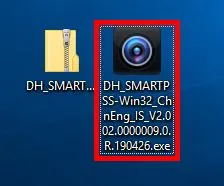
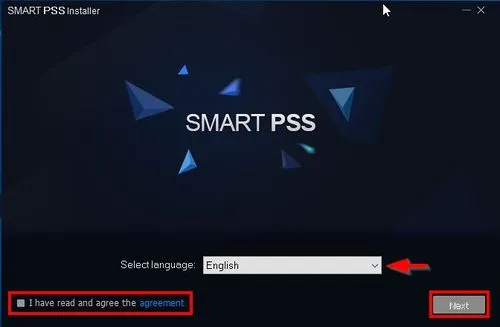
Step 3. The installer will launch
- Select the language using the drop-down box
- Check the box to agree to the license agreement
- Click Next
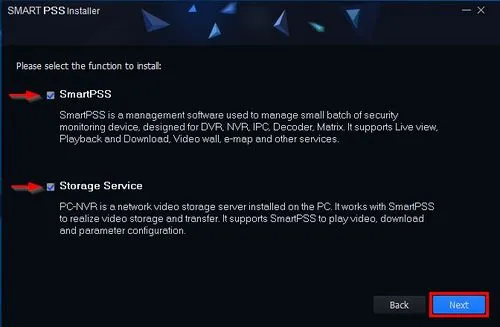
Step 4. You can select which components will be installed.
- SmartPSS – Leave this box checked to install SmartPSS
- Storage Service – Uncheck this box if you do not wish to have your PC function as a recording device for your cameras.
- Click Next
Step 5. Select Installation Path (Optional)
You can click Browse to change where SmartPSS will be installed. If you’re happy with the default location, simply leave the setting as it is, then click on the Install button, and the installation will begin. Once complete, click on the “Finish” button.
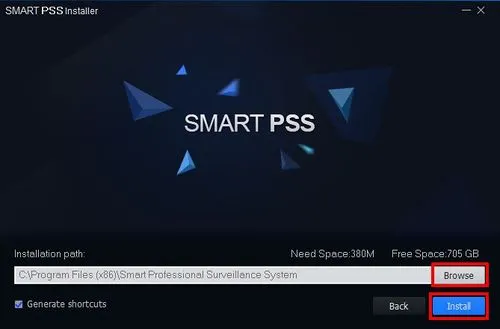
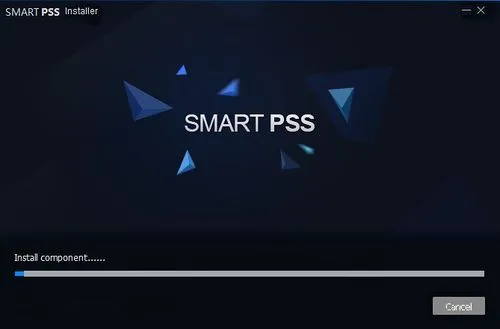
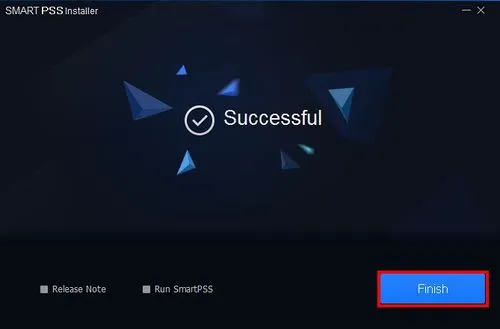
SmartPSS has been installed successfully
How to Add DVR/NVR on Dahua SmartPSS Software
Dahua SmartPSS (Smart Professional Surveillance System) is a free software that allows you to manage and monitor multiple DVRs, NVRs, and IP cameras from your computer. To view live video, playback recordings, or configure devices, you first need to add your DVR/NVR to SmartPSS.
Step 2: Open SmartPSS and Login
- After completing the installation, launch the SmartPSS software from your desktop or start menu.
- The first time you open it, the software may ask you to create a local login account. This account is only for logging into the SmartPSS software on your PC — it is different from your DVR/NVR account.
- Set a strong username and password for this local account so that nobody else can open the software without your permission.
- Once logged in, you will reach the SmartPSS main dashboard, where all functions (Device Manager, Live View, Playback, etc.) are available.
Step 3: Go to Device Manager
- On the dashboard, click on “Device” or “Device Manager” from the top menu.
- The Device Manager is the section where you can add new devices (DVR, NVR, or IP cameras), edit existing ones, or remove unused devices.
- This section is the heart of SmartPSS because it connects your physical CCTV devices with the software.
Step 4: Add a New Device (DVR/NVR)
- Inside Device Manager, click on the “+ Add” button to add your DVR or NVR.
- A form will appear where you need to enter device details:
- Device Name – Type any friendly name (example: Home DVR, Office NVR, Shop Camera System). This is just for your reference.
- Method – Choose how you want to connect:
- IP/Domain → If you know the local IP address or domain name.
- P2P (SN) → If you are using the serial number or QR code provided on the device (easier for remote access).
- IP Address / Domain – Enter the correct IP of the DVR/NVR (e.g., 192.168.1.108). For remote access, you may need DDNS or a public IP.
- Port – By default, Dahua uses 37777 for TCP communication. Enter this unless you have changed it in the device settings.
- Username – Default is usually admin, but if you have changed it earlier, enter the updated one.
- Password – Enter your DVR/NVR password. Avoid using the default password for security reasons.
- After filling in all the details, click on “Add” or “Save”. The device will now be listed in the Device Manager.
Step 5: Test the Connection
- After saving, check the device status in the list:
- If it shows “Online”, your DVR/NVR has been successfully added.
- If it shows “Offline”, double-check:
- IP address or domain is correct.
- Username/password is correct.
- The DVR/NVR is connected to the same network (for local setup).
- The firewall or antivirus is not blocking the software.
- Once fixed, refresh to see if the status changes to Online.
Step 6: View Live & Playback
- Return to the SmartPSS home screen.
- Click on “Live View” → You will now see the real-time camera feed from your DVR/NVR. You can drag and drop cameras onto the screen to view them.
- Click on “Playback” → Select the device and time/date to review past recordings. You can also download CCTV footage for backup or evidence (make sure it’s stored securely to prevent misuse).
Dahua SmartPSS Features
- Supports 18 languages.
- Support IPC, PTZ, NVR, EVS, HCVR, NVS, NKB, VDP and etc.
- Support up to 128 live viewing channels, main or sub-streams optional.
- Support 4K cameras.
- Support H.265 streams.
- Support IPv6 devices.
- Support Windows 11.
- Support Smart Track by linking a fisheye and PTZ.
- Support multiple tour tasks.
- One channel can be split into different windows.
- Multiple channels can be previewed in channel zero.
- Auto find/import/export supported.
- Easy to manage up to 64 Devices over a Maximum of 256 Channels
- Up to 36 channels of synchronous playback.
- Time bar and events playback modes are available.
- Support joystick to control PTZ cameras.
- Support fisheye camera Virtual PTZ operation by mouse.
- The alarm can be triggered via different events including IVS (Optional).
- Support e-map, you can clearly view and manage all device locations.
- PC-NVR enables local storage recording.
- TV wall configuration and control.
- Support VDP monitoring, talking, announcement, and configuration.
- Account management is supported, and different users share different privileges.
- Log for event and user activities.
- Friendly GUI for easy operation.
- Support P2P devices.
- Support fisheye image correction in both live viewing and playback.
🔗 Related CMS Software Articles
If you are using other CCTV brands, here are some helpful guides for their CMS software:
- iVMS 4200 Software – Download, Installation, and Configuration (Full Guide) – For Hikvision devices.
- KVMS Pro Free Download, Install & Configure – Complete Guide– For CP Plus devices.
👉 Each software works as a CMS (Central Management Software) similar to SmartPSS, helping you view, manage, and control multiple CCTV cameras from one computer.