CCTV cameras are one of the most important security tools today. Whether installed in homes, shops, offices, or factories, they help keep an eye on activities and provide evidence in case of theft or disputes. However, nothing is more frustrating than switching on your DVR and finding “No Video” on one of the channels while the rest of the cameras are working perfectly.
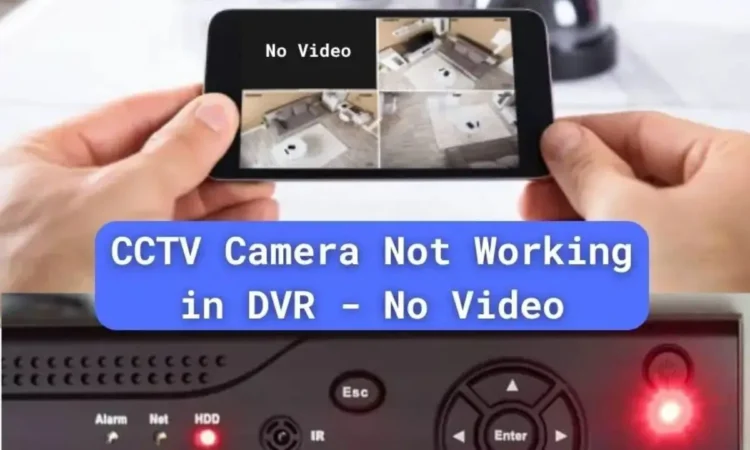
This problem is very common in CCTV installations. The good news is – in most cases, it can be fixed easily without professional help if you know the right troubleshooting steps.
In this guide, we will explain why a CCTV camera shows No Video on DVR, step-by-step troubleshooting methods, common mistakes to avoid, and preventive tips to stop it from happening again. By the end, you’ll be able to identify whether the issue is with the DVR port, camera power, connectors, cables, or the camera itself.
Why Does CCTV Camera Not Working in DVR and show “No Video”?
Before we dive into the steps, let’s understand what “No Video” actually means.
When the DVR does not receive a proper video signal from a connected camera, it shows a black screen or “No Video” message. This indicates that the DVR input is alive but not receiving a valid signal.
The causes can include:
- Faulty camera power supply (most common)
- Loose or damaged BNC connectors
- Faulty or broken coaxial cable / Cat6 cable
- Defective DVR input port
- Camera set to wrong format (AHD, TVI, CVI, CVBS)
- Resolution mismatch between camera and DVR
- Moisture, dust, or rust in connectors
- Faulty camera hardware
Now let’s move step by step.
Step 1: Confirm the Symptom and Reboot
Before jumping into testing equipment, always confirm if the issue is limited to one camera.
Checks to do:
- If all other channels are showing video properly, the monitor, DVR output, and power backup are fine. The issue is local to one channel.
- If multiple channels show No Video, the problem could be bigger (like SMPS failure or DVR issue).
- Reboot the DVR and the camera power supply. Sometimes, temporary glitches in DVR software or power fluctuations cause channels to freeze.
- Power cycle – turn off the DVR and camera supply for 30 seconds, then restart.
Example: Many shop owners report that after a power cut, one channel shows No Video while others work fine. In 50% cases, simply restarting the DVR and SMPS restores video.
Step 2: Check the CCTV Camera Power Supply
The power supply is the backbone of CCTV systems. If a camera does not get a stable voltage, it will not send video.

Things to check:
- Use a multimeter at the SMPS or adapter output.
- Expected reading: 12V DC ± 0.5V
- If it shows less than 11.5V, camera may not work.
- If one SMPS powers multiple cameras, check its ampere rating. Example: A 12V 5A SMPS can power 8 small IR cameras, but if you connect 12 cameras, voltage will drop.
- At night, IR LEDs switch on and consume extra current. Many times cameras work in daytime but show No Video at night.
- If voltage fluctuates, replace the adapter or upgrade to higher ampere SMPS (e.g., from 2A to 5A).
Example: A customer had 8 cameras running on one 12V 3A adapter. In the daytime, all worked fine. But at night, 2 cameras showed No Video. After replacing with a 12V 10A SMPS, the issue was solved permanently.
Step 3: Test the DVR Port
Sometimes the DVR Video Input Port itself fails.
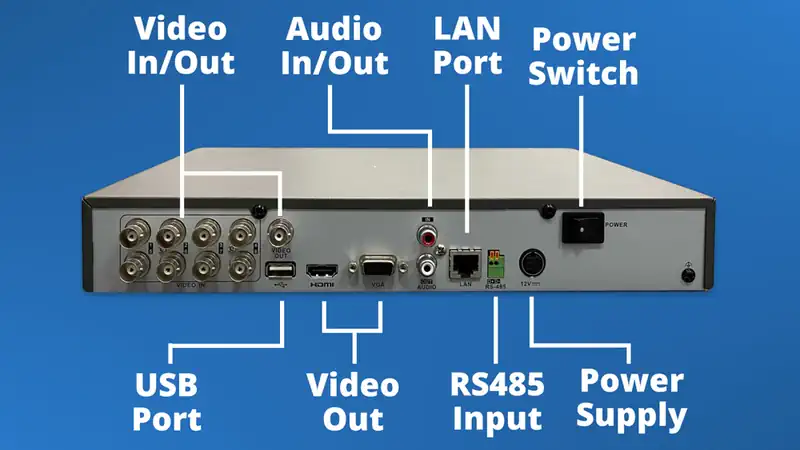
How to check:
- Disconnect the camera cable from the faulty port and plug it into another working port.
- If the video comes, the DVR port is defective.
- If multiple DVR ports show the same issue, the DVR needs servicing or replacement.
Tip: To save time, always mark faulty DVR ports with a sticker to avoid confusion later.
Step 4: Test With a Known Good Camera
This step helps identify whether the fault is in the camera or the cable/power line.

Things to do:
- Take a camera that you know is working properly (from another channel).
- Connect it to the same cable and DVR port.
- If the working camera also shows No Video → the problem is in cable/power supply.
- If the working camera shows video → your original camera is faulty.
Real-world scenario: A factory owner had one camera not showing video. He thought DVR was faulty. After testing with a good camera, he found the issue was the old camera itself.
Step 5: Check Power at the Camera End
Sometimes the adapter shows 12V near the DVR but due to long cable distance or thin wire, voltage drops by the time it reaches the camera.

How to test:
- Use a multimeter at the camera end (where DC pin is connected).
- If it reads less than 11.5V, the camera may not turn on.
- Solution: Use thicker copper wire, shorter cable, or higher ampere SMPS.
Tip: For long-distance runs (above 50 meters), always use 2-core copper cable for DC power, not cheap aluminium wires.
Step 6: Inspect and Reseat Connectors
BNC connectors are often the weakest link in CCTV systems.

Checks to perform:
- Remove and reconnect the BNC connectors firmly.
- Look for rust, dust, cracks, or loose pins.
- If you find moisture or greenish corrosion, replace the connectors.
- Use good quality crimping tools and branded connectors to avoid loose fitting.
Pro tip: In outdoor cameras, always use waterproof tape or junction boxes to protect connectors.
Step 7: Perform a Short Cable Test
If you suspect cable damage, test the camera with a short cable.
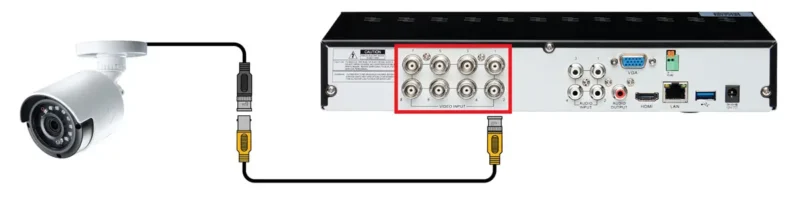
Things to do:
- Take the camera close to DVR and connect with a short (1–2 meter) known good cable.
- Use a separate power adapter.
- If video works on short cable → your long field cable is damaged.
- If still No Video → camera is faulty.
Example: In many cases, rats or sharp bends damage long cables inside walls. Short cable testing quickly confirms this.
Step 8: Match Camera Format and Resolution
Modern cameras and DVRs support multiple technologies: AHD, TVI, CVI, CVBS (analog). A mismatch will result in No Video.
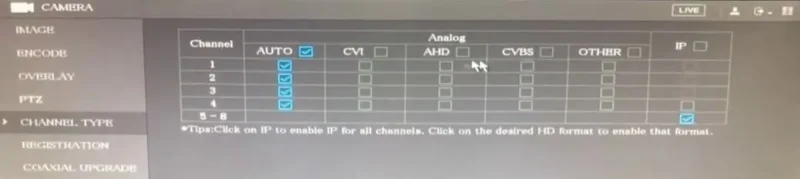
Checks:
- Make sure your DVR supports the camera format.
- Many cameras have a small joystick or button to switch modes. Hold the joystick in one direction for 5 seconds to change formats.
- Resolution mismatch: If DVR supports only 1080p but you connect a 5MP camera, it will not show video.
- PAL vs NTSC: Some DVRs don’t support mixed standards. Ensure both camera and DVR are on same standard.
Tip: Always check DVR specifications before buying new cameras.
Step 9: Replace or Repair the Faulty Part
By now, you’ll know whether the problem is with:
- DVR port → use another port or repair DVR.
- SMPS → replace with higher capacity branded one.
- Cable/connectors → re-crimp or replace with new.
- Camera → replace with a compatible model.
Pro Advice: Always keep one spare camera, SMPS, and short cable for quick testing.
Preventive Tips to Avoid Future “No Video” Problems
Prevention saves both time and money. Follow these simple rules:
- Use branded SMPS with extra capacity.
- Install solid copper coaxial or Cat6 cables.
- Avoid very long runs without boosters or baluns.
- Seal outdoor connectors properly with waterproof tape.
- Use UPS or surge protectors to protect from power fluctuations.
- Do monthly maintenance: check connectors, clean DVR fans, ensure stable voltage.
Common Mistakes People Make
- Using cheap SMPS – causes frequent voltage drops.
- Mixing aluminium cables with copper – leads to high resistance and voltage loss.
- Ignoring IR LED load – cameras consume more current at night.
- Not sealing outdoor connectors – moisture damages connectors permanently.
- Buying incompatible cameras – always match DVR format and resolution.
FAQs – CCTV No Video Problems
My CCTV camera shows black screen but IR LEDs are glowing. What does it mean?
It means the camera is getting power but video signal is not reaching DVR. Check connectors, cable, and format compatibility.
Can a weak DVR hard disk cause No Video?
No, a faulty HDD may stop recording but live video should still display.
My camera shows No Video only at night. Why?
At night, IR LEDs switch on and consume more current. If SMPS is weak, voltage drops and video disappears. Upgrade power supply.
What is the best cable for CCTV?
Use RG59 pure copper coaxial for analog, or Cat6 solid copper with baluns for HD cameras.
Do I need a technician to fix No Video issue?
Not always. With basic tools like multimeter and spare cable, most issues can be fixed by yourself.
Conclusion
A “No Video” issue in DVR is frustrating but usually caused by simple and fixable faults like weak power supply, loose connectors, damaged cables, or mismatched camera format. By following this detailed step-by-step guide, you can troubleshoot logically and solve the problem without guesswork.
Most users find that reseating connectors, replacing SMPS, or testing with a good camera solves 80% of issues. In rare cases, you need to replace the DVR or camera.
With proper preventive care—using quality power supply, cables, and sealed connectors—you can ensure your CCTV system works smoothly for years without “No Video” interruptions.