CCTV cameras have become an essential part of modern security systems, helping people monitor activities and stay alert to possible risks. But one common question often comes up — Can CCTV camera record audio or just video? Many people are unaware that some cameras are capable of capturing sound too.
If you’re curious about whether your camera has this feature, it’s easy to find out. In this guide, we’ll explain how to check if a CCTV camera is recording audio, what signs to look for, and what it means for your privacy and safety.
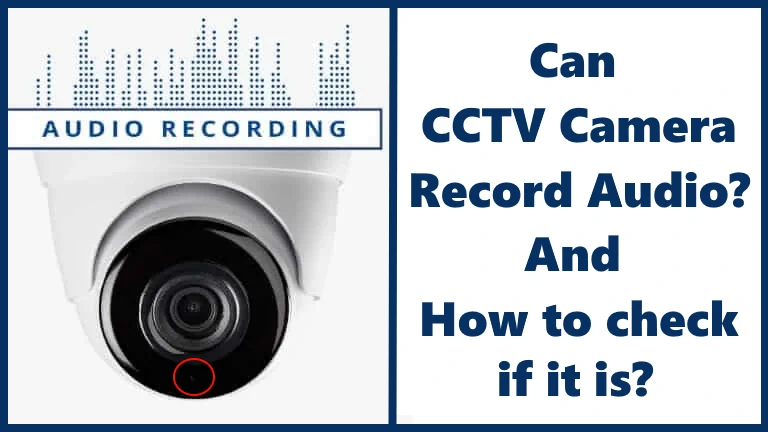
Can CCTV Camera Record Audio?
Yes, many modern CCTV systems can record audio — but it depends on the type of camera, its features, and your recording setup. Here’s how it works:
1. Audio-Enabled CCTV Cameras
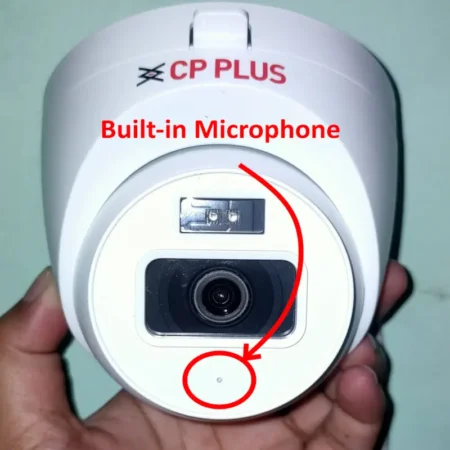
Some CCTV cameras come with built-in microphones. These can record voices and sounds in the surrounding area along with video footage. Such models are usually labeled as “audio-enabled” or “two-way audio.
2. External Microphones
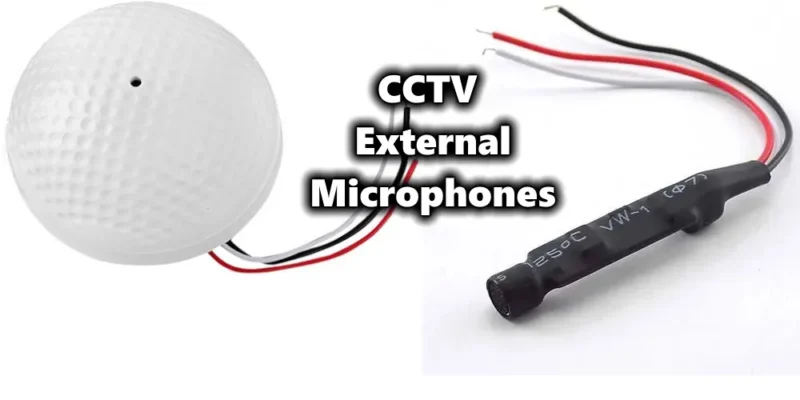
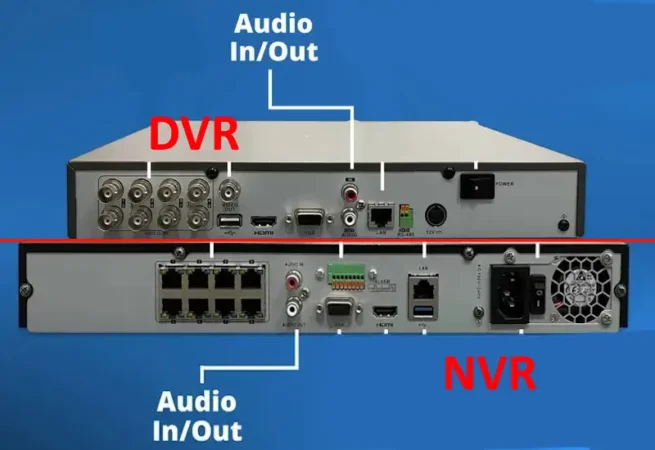
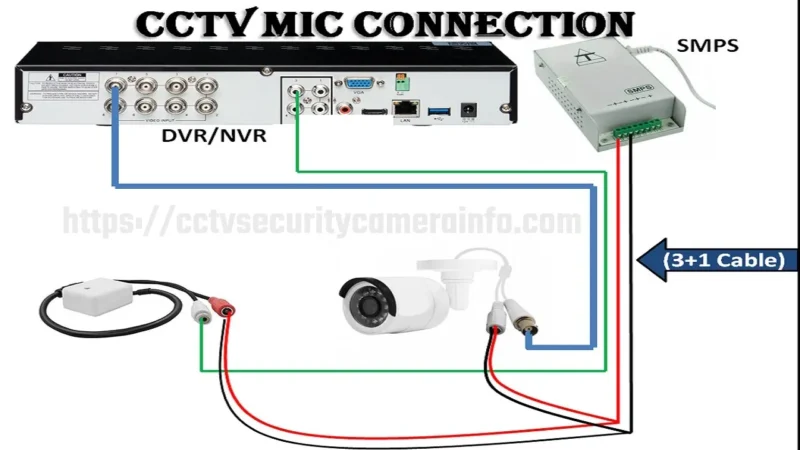
If your CCTV camera doesn’t have a built-in mic, you can add an external microphone. Many DVR and NVR systems have an audio input port where you can connect a mic to enable audio recording.
3. DVR/NVR Functionality
While cameras capture both audio and video, the capability to record audio often relies on the Digital Video Recorder (DVR) or Network Video Recorder (NVR). These devices process and store audio and video data. After that, you can Download the video and audio of cctv camera.
Legal Considerations: Always check the local laws before recording audio. In many areas, recording someone’s conversation without consent can be illegal. So, it’s important to know the rules before enabling this feature.
The Technology Behind CCTV Audio Recording
To comprehend how audio recording in CCTV systems works, let’s explore the underlying technology:
- Microphones: Built-in or external microphones capture sound around the camera.
- Audio Codecs: The captured sound is compressed using formats like AAC or G.711 for efficient storage.
- Storage: The DVR/NVR saves both video and audio data together, so you can view and listen later during playback.
Types of Audio Features in CCTV Cameras
Modern CCTV systems come with different types of audio features depending on the camera model and recording setup. Understanding these options will help you choose the right system for your needs.
One-Way Audio:
In one-way audio, the camera has a built-in microphone that allows you to listen to sounds near the camera but not speak back. This is useful for monitoring areas like entrances, reception desks, or shops where you only need to hear what’s happening.
Example: Security staff can listen to customer interactions or detect unusual noises without responding through the system.
Two-Way Audio:
Two-way audio allows both listening and speaking through the camera. It requires a built-in microphone and speaker (or connected ones). This feature is often found in smart IP cameras and is very useful for communication and deterrence.
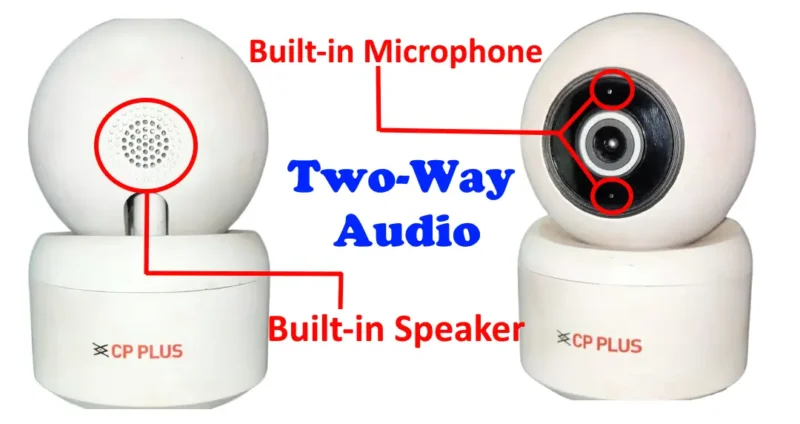
Example: You can talk to visitors at your door through your CCTV app or warn intruders in real time using the built-in speaker.
Sound Alerts and Recording:
Some advanced cameras include sound detection sensors. These detect loud noises (like shouting, breaking glass, or alarms) and automatically trigger recording or send alerts to your phone. This helps ensure that no unusual activity goes unnoticed, even if it happens off-camera or out of view.
Example: If someone breaks a window or raises their voice near the camera, the system immediately starts recording or sends a notification to the user.
You may fing helphul: How to setup email alerts on your CCTV Camera system
How to add mic in cctv system to record audio
Adding a mic to your CCTV system is quite simple. Follow these steps:
What You’ll Need:
- CCTV Camera: Ensure your CCTV camera has audio input capabilities or a built-in microphone. Not all cameras support audio recording.
- External Microphone: Purchase an external microphone suitable for your CCTV camera. Choose one with good sensitivity and audio quality.
- Power Supply: Some external microphones require a separate power source. Ensure you have the appropriate power adapter or batteries if needed.
- Audio Cable: You’ll need an audio cable to connect the microphone to the camera. Make sure it’s long enough for your installation.
CCTV Microphone Installation Steps:
- Power Off: Before you start, power off your CCTV camera and any other related equipment for safety.
- Connect the Microphone:
- Plug one end of the audio cable into the microphone’s output.
- Connect the other end of the audio cable to the audio input port on your CCTV camera. This port is usually labeled “Audio In” or something similar.
- Power the Microphone:
- If your microphone requires a power source, connect it to a power adapter or insert the required batteries, following the manufacturer’s instructions.
- Camera Settings:
- Power on your CCTV camera and access its settings. You can do this via the camera’s interface or a connected monitor.
- Navigate to the camera’s audio settings. This might be found under “Audio,” “Sound,” or a similar menu.
- Enable audio recording for the camera. Adjust audio sensitivity settings if available.
- DVR/NVR Configuration:
- Turn on your DVR (Digital Video Recorder) or NVR (Network Video Recorder) and access its settings through a connected monitor or a web interface.
- Find the camera you’ve connected the microphone to in the DVR/NVR settings.
- Enable audio recording for that specific camera.
- Testing:
- To ensure everything is working correctly, make some noise near the microphone or speak into it. You should see audio levels on your monitor or within the DVR/NVR interface.
- Access the live view or playback mode on your DVR/NVR to listen to recorded audio and confirm its quality.
- Adjust Settings:
- Fine-tune audio settings as needed. You may want to adjust the microphone’s sensitivity to capture clear audio without excessive background noise.
Maintenance Tips: Periodically check your audio equipment and connections to ensure they are functioning correctly.
How to Check if a CCTV Camera is Recording Audio
Many modern CCTV cameras do more than just capture video; they also record sound. This feature can add a significant layer of security, but it also brings up important privacy considerations. Whether you’re a homeowner wanting to confirm your coverage or an individual concerned about privacy, determining if a camera is recording audio is a key piece of information.
If you’re not sure whether a security camera is recording sound, here are five effective methods to check, ranging from a simple physical inspection to a definitive software test.
1. Look for a Built-In Microphone Hole
The easiest first step is to physically inspect the camera itself.
- What to look for: Examine the camera body, especially around the lens, on the bottom, or on the sides. You are looking for a tiny, pin-sized hole.
- Labeling: This hole is often (but not always) labeled with “MIC” or a small microphone icon. On many modern, compact cameras, it may be unlabeled to remain discreet.
- What it means: The presence of this hole is a strong indicator that the camera is capable of capturing audio. However, it does not definitively mean the audio recording feature is enabled.

2. Check the Camera’s Official Specifications
This is the most reliable way to confirm the camera’s capabilities. If you can identify the camera’s make and model number (often printed on a sticker on the camera or its mounting bracket), you can find the answer in seconds.

- Check the Manual/Box: If you still have the original packaging or user manual, the features list will state its audio capabilities.
- Search Online: Type the model number into a search engine. Look for the official product page or retailer listings.
- Keywords to Look For:
- “Built-in Microphone”
- “Audio Recording”
- “Audio Input” (This may also mean it supports an external mic)
- “Two-Way Audio” or “Two-Way Talk” (This definitively means it has both a microphone and a speaker)
If the specifications list any of these features, the camera hardware supports audio. The next step is to see if it’s turned on.
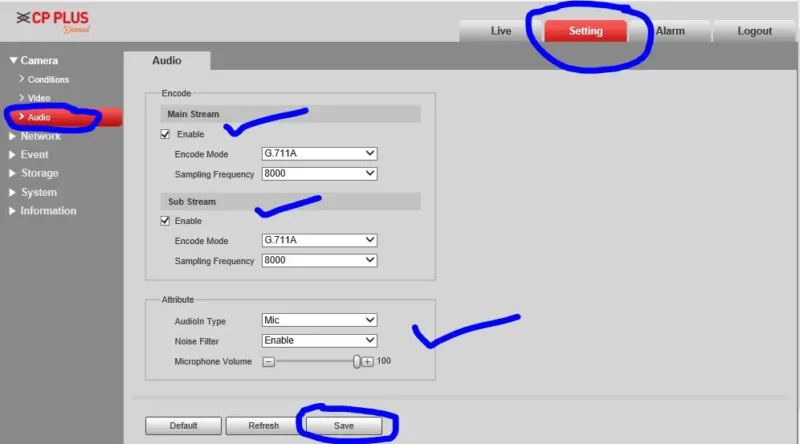
3. Investigate Your Recorder (DVR/NVR) or App Settings
A camera may have a microphone, but the audio recording is almost always controlled by the software—either on the mobile app or in the main recording device (the DVR or NVR).
- Where to Look: Log in to your system’s menu using a connected monitor or the desktop/mobile application.
- Navigate to Settings: Look for menus labeled “Camera Settings,” “Channel Settings,” “Recording,” or “Audio.”
- Find the Toggle: Inside the settings for the specific camera (e.g., “Camera 01”), you will often find a simple checkbox or toggle switch labeled “Record Audio,” “Enable Audio,” or an audio icon. If this box is checked, the system is saving the audio stream. On more advanced systems, you might have to check the “Stream Settings” to ensure the “Video & Audio” stream is selected, not “Video Only.”
4. Perform a Live View Test
This method checks if the microphone is currently active and streaming sound, even if it’s not being recorded.
- How to Test: Open the live feed for the camera on your mobile app or computer monitor.
- Make Some Noise: Stand near the camera and talk, clap your hands, or snap your fingers.
- Listen: If you can hear your voice or the sounds you’re making coming through the speakers of your phone or monitor, the camera’s microphone is active and transmitting a live audio feed.
- Important Caveat: This only confirms the live stream has audio. It is possible (though less common) for a system to be set up to stream live audio but not record it.
5. The Definitive Test: Check the Playback
This is the single most conclusive way to know if audio is being recorded and saved. The previous steps check capability and live status, but this one checks the final, stored file.
- How to Test: Using your app or NVR/DVR menu, navigate to the “Playback” or “Search” function.
- Find a Recording: Select a recent video clip from the camera in question.
- Listen Carefully: Play the clip and turn up the volume. If you can hear voices, ambient background noise (like traffic, birds, or an air conditioner), or the test sounds you made earlier, then your CCTV camera is unequivocally recording audio.
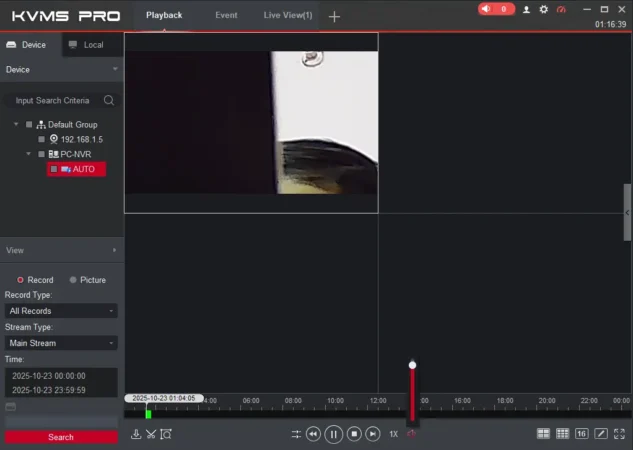
If you hear silence (and you are sure there was noise at the time of recording), then audio recording is disabled, even if the camera has a microphone.
Advantages of CCTV Audio Recording
Now that we’ve established that CCTV can indeed record audio, let’s discuss why this feature can be advantageous:
- Enhanced Security: CCTV Audio recording complements CCTV video, providing a comprehensive security solution. Sounds, such as breaking glass or unusual noises, can trigger alerts.
- Evidence Collection: In legal or investigative scenarios, audio can be crucial evidence. It can provide context and details that visuals alone may not convey.
- Deterrent Effect: The knowledge that audio is being recorded can act as a deterrent, discouraging potential wrongdoers from illegal activities.
FAQs
Is it legal to record audio with CCTV at home?
The legality of audio recording at home varies by jurisdiction. It’s essential to research local laws and obtain consent if necessary.
Can I add audio recording to my existing CCTV system?
The storage duration depends on factors like the capacity of your DVR/NVR and the level of compression used. Typically, recordings can be stored for weeks or even months.
What are the privacy implications of audio recording with CCTV?
Audio recording can raise privacy concerns, especially if conversations are captured without consent. It’s crucial to be aware of and comply with privacy laws.
Are there CCTV systems specifically designed for audio recording?
Yes, there are CCTV systems with audio recording as a primary feature. These systems often come with built-in microphones and optimized audio codecs.
Conclusion
CCTV systems today can record both video and audio, offering more complete security coverage. Whether through built-in microphones or external setups, you can easily enable this feature to enhance your surveillance.
However, remember that audio recording also comes with legal and ethical responsibilities. Always follow local rules and respect privacy while using audio-enabled CCTV systems.