Downloading footage is easy, but most people fail because they don’t know about File Systems, Playback formats and some important steps. In this guide, I will show you the exact steps I use on-site to export Hikvision recordings safely.. before that, we should know Why there is a need to export cctv footage to a pen drive.
Exporting CCTV footage to a pen drive can be useful for several reasons:
- Backup: CCTV Camera footage is often recorded and stored on a DVR (Digital Video Recorder) or NVR (Network Video Recorder). Exporting the footage to a pen drive provides an additional backup, ensuring that the footage is preserved in case of system failure or damage to the DVR/NVR.
- Evidence preservation: CCTV footage can serve as crucial evidence in various situations, such as criminal investigations, accidents, or disputes. By exporting the footage to a pen drive, it can be securely stored and easily handed over to law enforcement agencies, insurance companies, or other relevant parties.
- Sharing and distribution: In some cases, it may be necessary to share CCTV footage with other parties who do not have direct access to the surveillance system. By exporting the footage to a pen drive, it can be conveniently shared and distributed to authorized individuals or organizations.
- Offline viewing: CCTV footage exported to a pen drive can be viewed on computers or other devices without requiring a direct connection to the surveillance system. This allows for offline reviewing, analysis, and archiving of the footage.
- Storage limitations: DVRs and NVRs have limited storage capacity, and the continuous recording of footage can fill up the available storage space. By exporting the footage to a pen drive, it frees up storage on the surveillance system, ensuring continuous recording without interruption.
Download CCTV Footage from Hikvision DVR to Pendrive
Preparing the Pen Drive (The Most Important Part):- Before connecting, format your pen drive to FAT32 on a PC. Hikvision DVRs (especially older 7200 series) often fail to detect NTFS or exFAT drives.
Step 1: Log in to the DVR
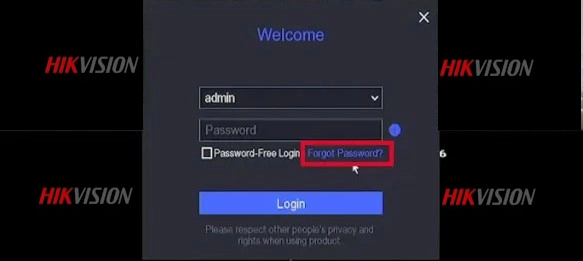
Enter your login credentials, including the username and password, to access the DVR’s interface. If you haven’t changed the default login credentials, you can find them in the DVR’s manual or contact the system administrator.
Step 2: Connect the Pen Drive
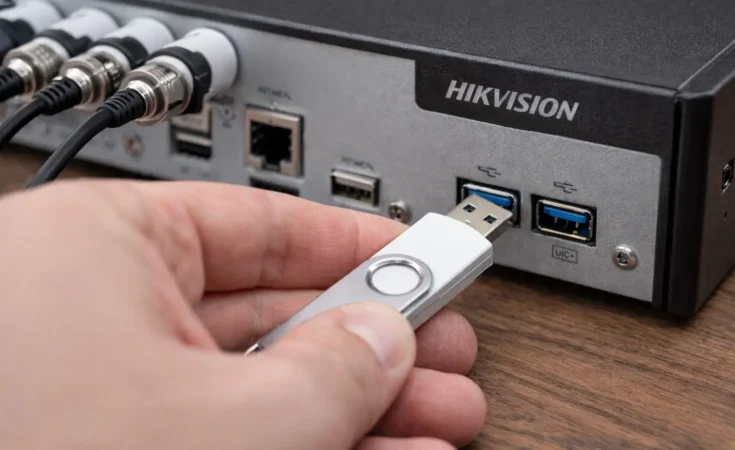
Insert the pen drive into one of the available USB ports on the Hikvision DVR. Ensure that a pen drive is formatted correctly and has enough storage space to accommodate the footage you want to download.
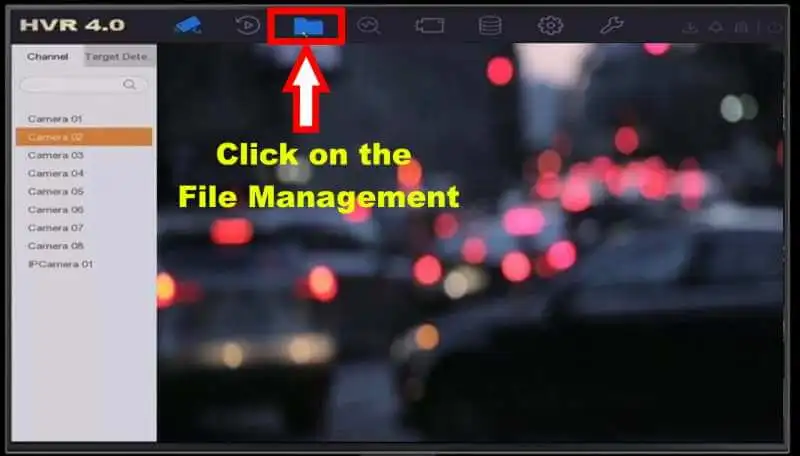
Step 3: Find the File Management Menu
Once logged in, navigate to the “File Management” that will be shown in Uper-Bar in the 3rd number and click on file icon.
Step 4: Select the Camera Channel
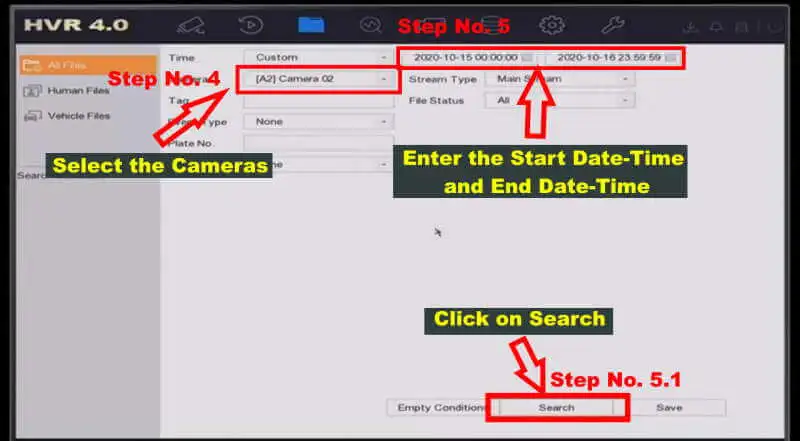
If your DVR has multiple cctv camera channels, select the specific camera channel or channels from which you want to download the footage.
Step 5: Choose the Date and Time
In the File Management Window, select the date and time for which you want to download the CCTV footage. You can usually choose a specific date and then use the timeline or input boxes to select the desired time range. Click on the “Search” button, Now CCTV footage list will open.
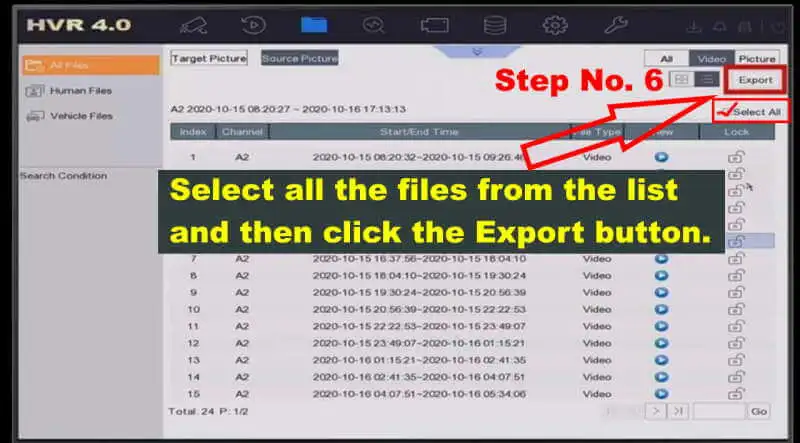
Step 6: Select the cctv footage
Select all CCTV footage by clicking on “Select All” and then click on the “Export” button.
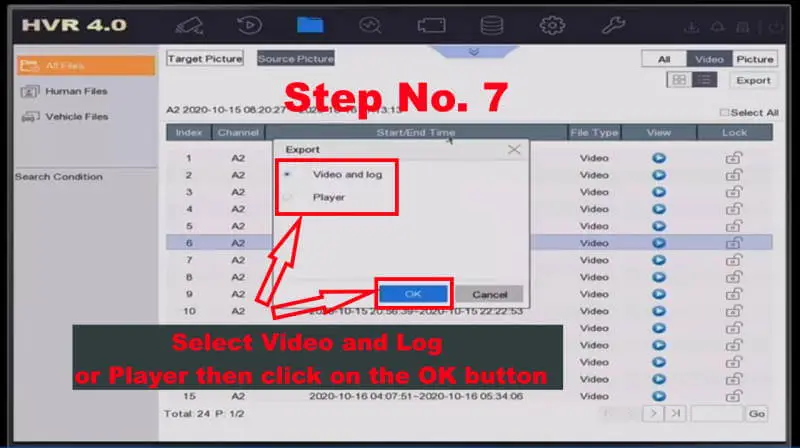
A pop-up will open where you can select “Video and Log” or “Player” and then click on the “OK” button.
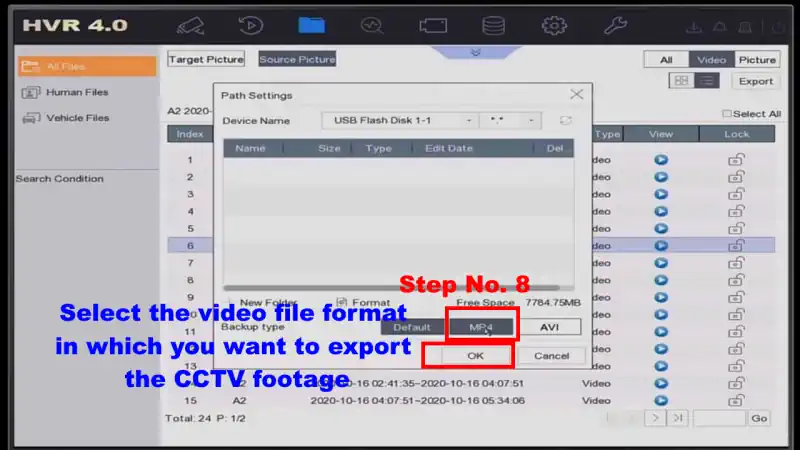
Step 8: Specify the Download Destination and File Format
A new Pop-up will open here. You have to select the CCTV Footage file Destination (Pen Drive) and select the CCTV Footage File format in which you want to download, and then click on the “OK” button. The cctv footage will start downloading as soon as you click on the OK button.
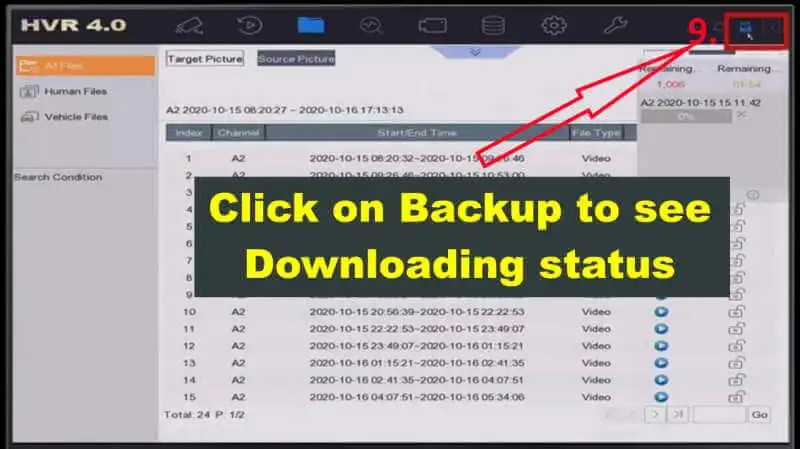
Step 9: Check the Download Status
To check the Downloading Status, click on the Backup icon as shown in the image below.
When the download is complete, safely remove the pen drive from the USB port of the DVR. The CCTV footage you wanted to take from Hikvision’s DVR to a Pendrive is now in your pen drive.
Tips for Smooth Export
- Format the pen drive before use for best compatibility.
- Use MP4 format if possible — it plays on most media players.
- If exported in DAV format, use Hikvision’s VSPlayer to play the files.
- Always keep extra copies of important videos.
- Use a large capacity pen drive (32GB or more) for longer clips.
Advanced Troubleshooting: Expert Solutions for Hikvision Export Issues
Exporting footage doesn’t always go as planned. Based on my field experience, here are the technical reasons behind common failures and how to fix them:
Problem 1: Pen Drive/USB Flash Drive Not Detected
- The FAT32 Limitation: Most Hikvision DVRs use a Linux-based kernel that cannot read NTFS or exFAT partitions. Always format your drive to FAT32 on a PC before plugging it in.
- Capacity Issues: If you are using a 128GB or 256GB USB 3.0/3.1 drive, the DVR’s port might not provide enough power to initialize it. Try using a 16GB or 32GB USB 2.0 drive for 100% compatibility.
- The Front vs. Back Port: The front USB port is often for the mouse and has lower data priority. If the drive isn’t detected, unplug the mouse and use the Rear USB port (on the motherboard) for a stable connection.
Problem 2: Export Fails to Start or “Record Not Found”
- HDD Fragmentation: If the internal Hard Drive is too full or fragmented, the DVR might struggle to index the files for export. Try restarting the DVR to clear the cache.
- Time Overlap: If you select a time range that spans across two different days (e.g., 11:50 PM to 12:10 AM), some older firmware versions might crash. Try exporting clips within the same calendar day.
- User Permissions: Ensure the “User Account” you logged in with has “Export” permissions enabled in the System Settings.
Problem 3: Files Not Playing or “Unsupported Format” on PC
- The .DAV vs .MP4 Conflict: By default, Hikvision exports in
.dav(encrypted) format for security. If you need to play it on VLC or Windows Media Player, you must select MP4 in the export settings. - Codec Issues: If the video is black but you can hear audio, your PC lacks the H.265+ codec.
- Solution: Download the official Hikvision VSPlayer. It is designed to handle the proprietary compression used by Hikvision cameras.
Problem 4: DVR Freezes or Reboots During Export
- The “Large File” Trap: Exporting 24 hours of continuous footage in one go puts a heavy load on the DVR’s processor.
- Expert Fix: Export in 1-hour or 2-hour chunks. It reduces the risk of file corruption and doesn’t overload the DVR’s RAM.
- Power Supply Weakness: If your DVR’s power adapter is old, it might not provide enough “juice” to power both the Internal HDD and the External Pen Drive simultaneously. If it hangs, try a fresh 12V 2A or 5A power adapter.
Problem 5: “No Enough Space” Error (Even on Empty Drive)
- System Reserved Space: Some DVRs require a small amount of “Buffer Space” on the USB drive. If your footage is 4GB and your pen drive is exactly 4GB, it will fail. Always use a drive that has at least 10% more space than the file size.
Conclusion
Exporting CCTV footage from a Hikvision DVR to a pen drive is simple and effective. With just a few steps — login, connect USB, select camera, choose date/time, and export — you can back up important recordings quickly.
This method is perfect for:
- Keeping extra backup copies
- Sharing evidence with authorities
- Freeing up DVR storage space
Always remember to check the file format, keep multiple copies, and use official Hikvision VSPlayer for playback if required.
By following this guide, you can safely transfer your CCTV recordings to a pen drive and keep your data secure for future use.
Read Also:



This is a very helpful article. It really supports me whenever I try to download CCTV footage to a pen drive and get stuck at any step. Thank you very much