Many older CCTV DVRs and NVRs were designed when Internet Explorer was the most widely used browser. Their web interfaces depend on outdated technologies like ActiveX, which modern browsers such as Chrome, Firefox, and Edge no longer support.
Since Microsoft discontinued Internet Explorer in 2022, many users cannot access these systems through regular browsers. Fortunately, Microsoft Edge includes Internet Explorer Mode (IE Mode), which allows these older CCTV interfaces to run properly, making it possible to access DVR or NVR systems without using the old Internet Explorer browser.
Why Do You Need Internet Explorer Mode for CCTV?
Many older DVRs and NVRs require legacy plugins only supported by Internet Explorer. Because modern browsers lack this compatibility, interfaces often fail to load.
Rather than replacing your hardware, simply enable IE Mode in Microsoft Edge to restore full functionality and video streaming on your current system.
How to Enable Internet Explorer Mode in Microsoft Edge
Before turning on IE Mode, please ensure your CCTV device is ready. Check that it is:
- Connected to the same local network (LAN) as your computer.
- Powered on and functioning correctly.
- Accessible via its IP address or web URL.
Pro Tip: Not sure what your camera or NVR’s IP address is? You can easily find it on your network using brand-specific discovery software. Check out our quick guides on how to use the [Dahua ConfigTool], [CP Plus IP Finder], or [Hikvision SADP Tool] to locate your device.
Once you have confirmed the above, you are ready to proceed. Follow these step-by-step instructions:
Step 1: Open Microsoft Edge and Access Your CCTV Link
- Launch the Microsoft Edge browser.
- Type your CCTV’s IP address or URL in the address bar and press Enter.
- Once the page loads (even if partially), copy the URL.
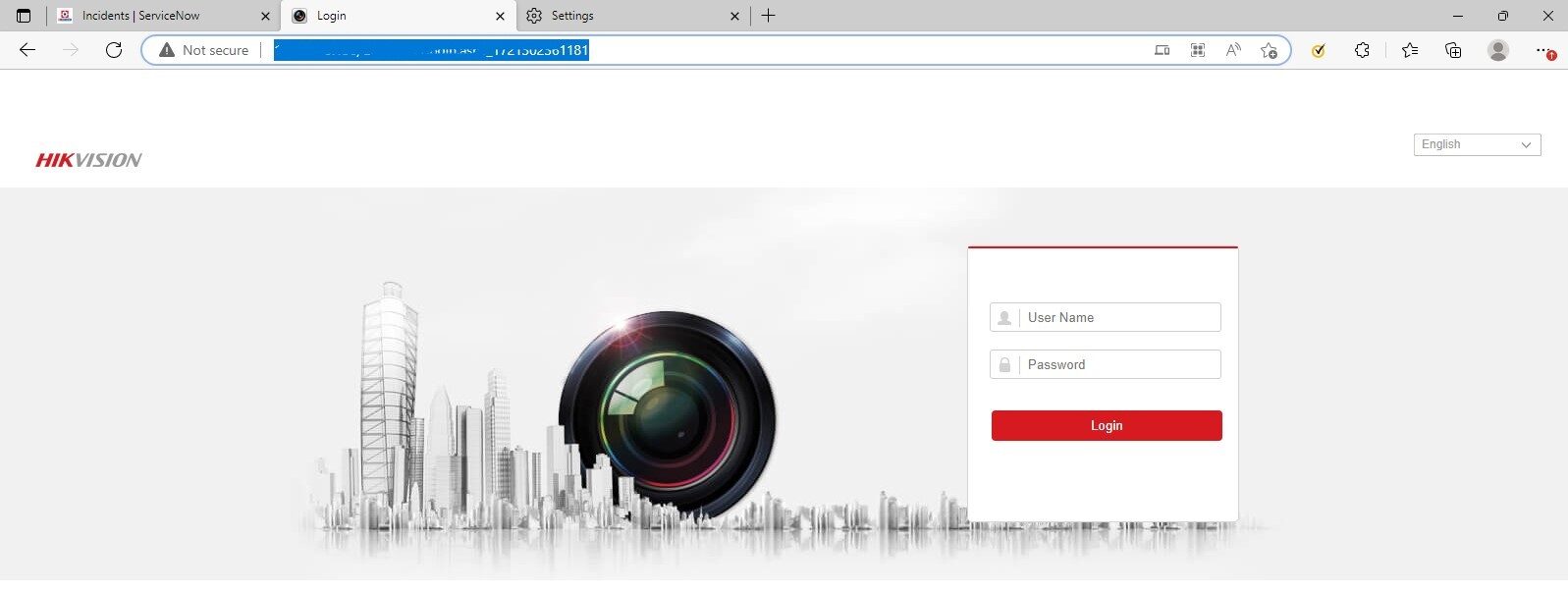
Step 2: Save the CCTV URL for Quick Access
- Add the CCTV link to your Favourites/Bookmarks.
- This will help you quickly access it later once IE Mode is enabled.
Step 3: Open Microsoft Edge Settings
- Click on the three-dot menu (⋯) in the top-right corner of the browser.
- From the dropdown list, select Settings.
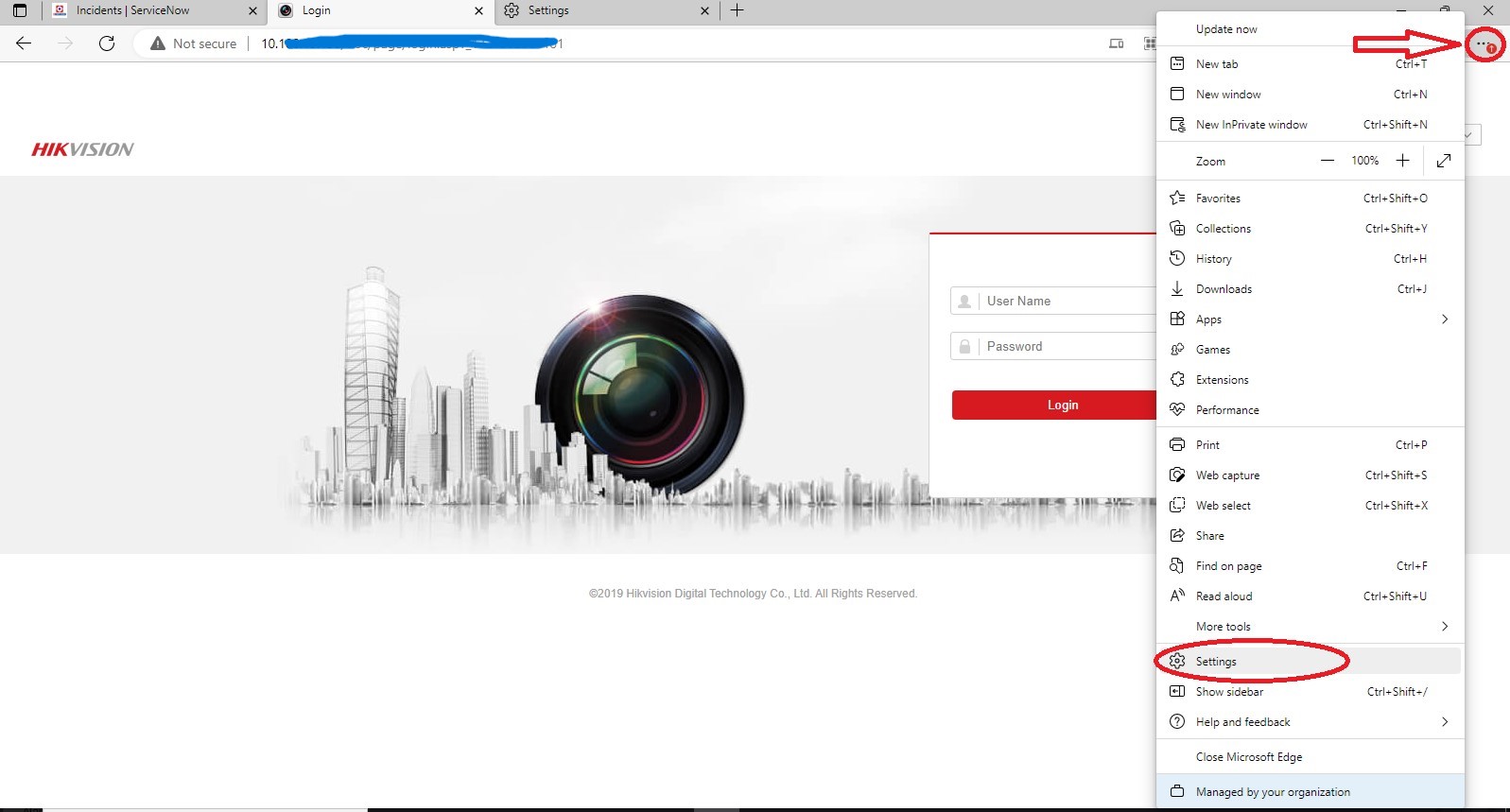
Step 4: Navigate to the Default Browser Section
- In the Settings panel, look at the left-side menu.
- Click on Default Browser.
- On the right side, find the option Allow sites to be reloaded in Internet Explorer mode.
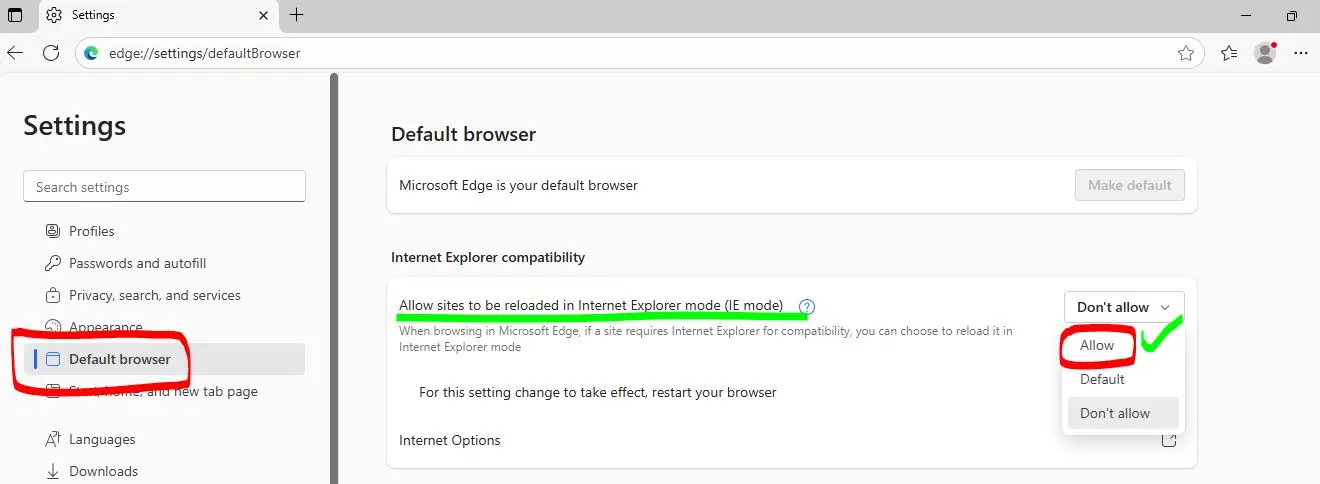
Step 5: Add Your CCTV Link to IE Mode
- Click the Add button under “Internet Explorer mode pages.”
- Paste the CCTV URL or IP address you copied earlier.
- Click Add to save it.
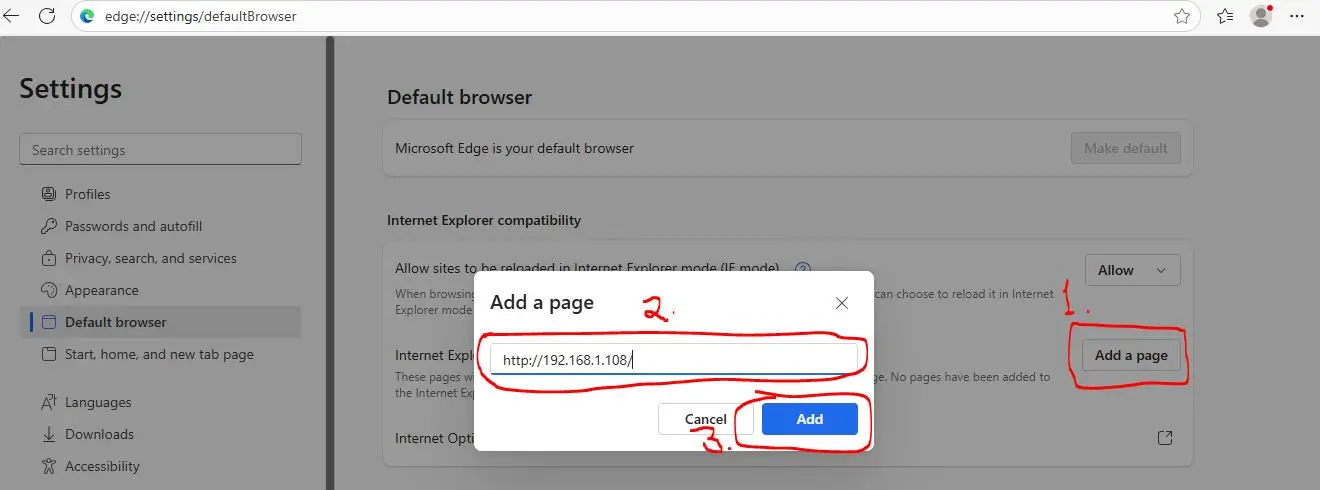
Step 6: Reload Your CCTV Page
- Reopen the saved link from your Favourites or type the IP address again.
- This time, the page will load in IE Compatibility Mode.
- You should now see your CCTV login page and be able to access the live video feed or settings.
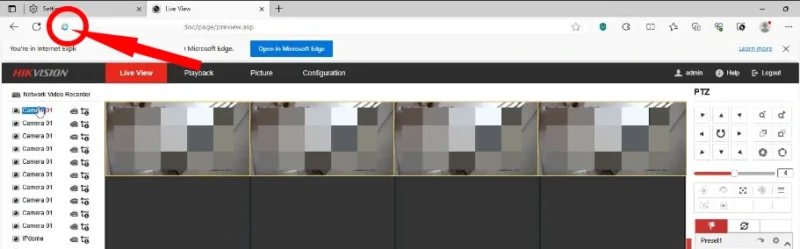
If the Internet Explorer icon appears on the left side of the address bar before the CCTV IP address, as shown in the image, it means the page is currently opened in Internet Explorer Mode in Microsoft Edge. This confirms that IE Mode is working correctly for accessing your CCTV system.
Additional Tips for Smooth Access
To ensure uninterrupted access to your CCTV system, keep these critical maintenance and security tips in mind:
- Manage the 30-Day Expiration – Microsoft Edge’s “IE Mode Pages” list is temporary. For security reasons, added URLs expire every 30 days. To avoid losing access, you must re-add your DVR/NVR IP address to the list once it expires to refresh the compatibility.
- Enable ActiveX Controls – Most legacy CCTV devices rely on ActiveX plugins to stream video. If your browser prompts you to “Allow” or “Install” a plugin after enabling IE Mode, grant the permission immediately to see the video feed.
- Verify Network Connectivity – If the login page fails to load, ensure your computer and the CCTV system are on the same local network (subnet). You can test this by “pinging” the DVR’s IP address in your Command Prompt.
- Use Administrative Credentials – Some DVR/NVR web interfaces require full admin rights to change settings or view high-resolution streams. Ensure you aren’t logged in with a restricted “Guest” account.
- Stay Updated – Regularly update Microsoft Edge. While you are using a legacy mode, keeping the parent browser updated ensures you have the latest security patches against modern web threats.
Alternative: Use PC Software for CCTV Access
If browser access still does not work properly, you can connect your CCTV system using the official PC software provided by the manufacturer. These applications usually offer better stability and more features than browser access.
For example, Dahua users can use SmartPSS, Hikvision users can use iVMS-4200, and CP Plus users can use KVMS Pro to view live cameras, playback recordings, and manage settings directly from a computer.
Final Thoughts
Even though Internet Explorer has been retired, you don’t need to replace your CCTV DVR or NVR just because the web interface doesn’t load in modern browsers. By enabling Internet Explorer Mode in Microsoft Edge, you can continue to access your CCTV system, view live footage, and adjust settings without issues.
This solution is simple, reliable, and officially supported by Microsoft, making it the best way to extend the life of older CCTV devices. Instead of struggling with unsupported browsers, just configure IE Mode once, and your CCTV link will always open correctly in Microsoft Edge.