Managing and troubleshooting devices remotely has become an essential part of modern surveillance systems. For Hikvision DVRs (Digital Video Recorders) and NVRs (Network Video Recorders), a simple reboot can often resolve performance issues such as lagging video, camera disconnection, or system glitches.
Instead of physically going to the location, you can easily reboot the device remotely, saving both time and effort. In this detailed guide, we’ll walk you through the process of How to Reboot Hikvision DVR/NVR Remotely, explain why it is important, and provide additional tips to optimise your system’s performance.
Why Remote Rebooting is Important
- Enhances Security: Ensures continuous video surveillance without long interruptions.
- Quick Troubleshooting: Solves temporary issues like frozen screens, offline cameras, or recording errors.
- Saves Time: No need to physically access the device, especially if it’s installed in a hard-to-reach location.
- Prevents Downtime: A scheduled reboot can help maintain system stability and reduce the chances of crashes.
How to Reboot Hikvision DVR/NVR Remotely
Step 1: Log in to Your Hikvision Recorder
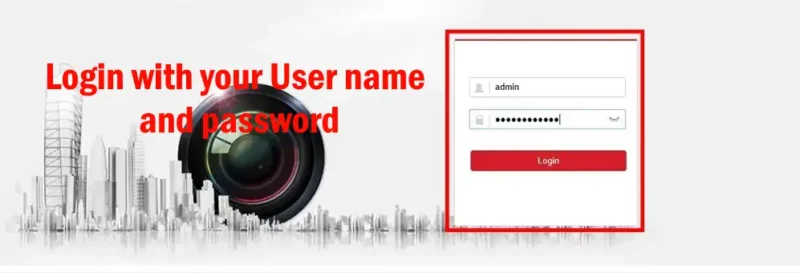
Begin by opening your web browser and entering the IP address of your Hikvision recorder in the address bar. You will be prompted to log in with your username and password. Ensure that you have the necessary credentials to access the recorder.
Step 2: Navigate to the Configuration Interface
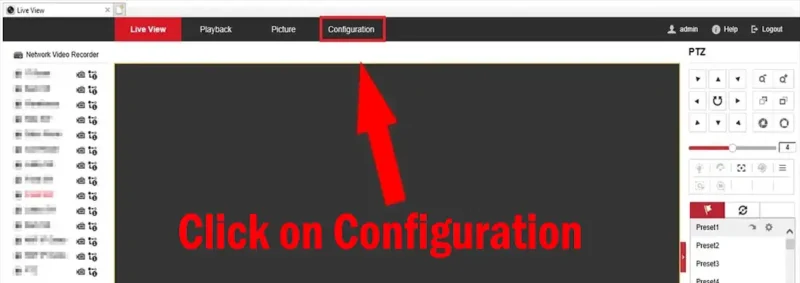
Once logged in, locate the Configuration interface. This may vary slightly depending on the model of your Hikvision recorder, but it is typically found in the last section.
Step 3: Access the Reboot Option
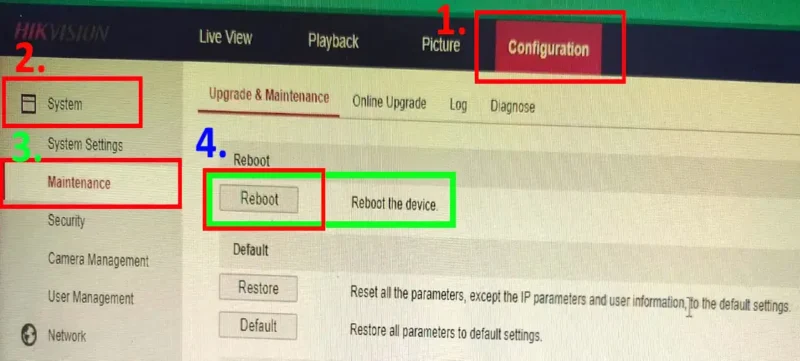
Within the “Configuration” interface, click on the “System” tab and then click on “Maintenance”. Now look for the ‘Reboot’ option in the Maintenance page. It is commonly located under the ” System” or ‘Maintenance’ tab. Click on the “Reboot” option to proceed.
Step 4: Confirm Reboot
You will be prompted to confirm your decision after clicking on the ‘Reboot’ option. Confirm that you want to reboot the recorder remotely. It’s crucial to ensure that no critical processes or recordings are ongoing before proceeding.
Step 5: Wait for the Reboot Process
Once confirmed, the Hikvision recorder will initiate the reboot process. This may take a few minutes. It’s essential to be patient and avoid interrupting the process to prevent any potential issues.
Step 6: Verify Successful Reboot
After the reboot process is completed, the login page will be reopened automatically and then log in to your Hikvision recorder again to verify that the system is back online. Ensure that all functions are operational and that the recorder is recording video footage as expected.
Additional Tips for Smooth Operation
✅ Schedule Reboots: If your system runs 24/7, consider scheduling a reboot during late-night hours when there is minimal activity.
✅ Update Firmware: Always check for the latest Hikvision firmware to improve stability, performance, and security.
✅ Ensure Network Stability: A weak or unstable network may cause login failures during remote access. Use a reliable connection.
✅ Remote Management Tools: Hikvision’s iVMS-4200 software or the Hik-Connect mobile app also allows remote reboot and system maintenance.
✅ Check Logs: If issues persist after rebooting, review the system logs under System > Maintenance > Logs to identify root causes.
Conclusion
Rebooting your Hikvision DVR/NVR remotely is a simple yet powerful troubleshooting method. It helps maintain smooth operation, improves performance, and ensures uninterrupted video surveillance. By following this guide on How to Reboot Hikvision DVR/NVR Remotely, you can manage your recorder more effectively without needing physical access.
Keeping your device updated, scheduling timely reboots, and ensuring a stable network connection will further enhance the reliability of your CCTV surveillance system.
Related Articles You May Find Helpful