If you work in CCTV installation, the IP address for CCTV is something you deal with almost every day. Back in the day, pulling a coax cable was enough, but today, whether you are installing an IP camera, configuring an NVR, or setting up remote viewing, everything depends on proper network configuration.
In this article, I will explain IP addresses in simple language, especially keeping CCTV systems in mind. No complicated IT jargon—just the practical stuff you need to get the job done right.
What is an IP Address?
An IP address (Internet Protocol address) is a unique number given to every single device connected to a network.
Think of it like the physical world: just like every house has a unique street address so the postman knows where to deliver the mail, every device in a computer network must have a unique IP address so data knows where to go.
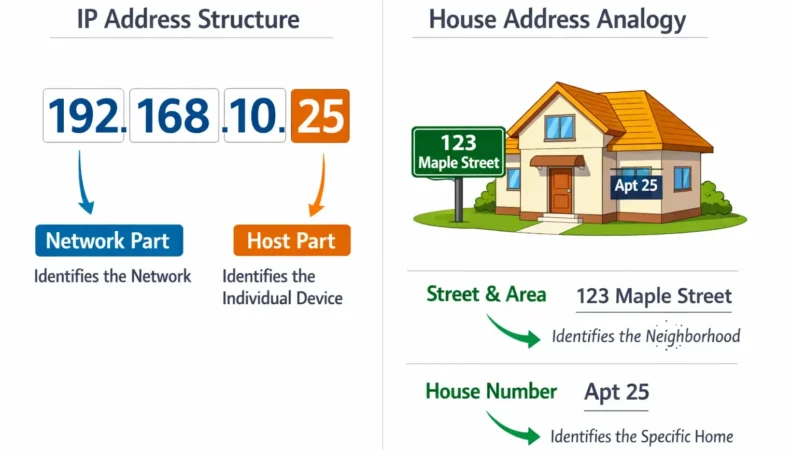
Example of an IP address: 192.168.10.25
In a CCTV setup, these devices absolutely need their own IP addresses to function:
- IP cameras: So they can send their video feed across the wire.
- NVR (Network Video Recorder): So it can receive the video from the cameras and send it to the internet.
- DVR – Digital video recorders: If network enabled, Even older analog DVRs need an IP to allow for remote viewing.
- Router: The boss of the local network that connects you to the outside world.
- Computer / Laptop: The tool you use to log in and configure the system.
- Mobile phone (for remote view): The device the client uses to see their property.
Without IP addresses, devices simply cannot communicate with each other. It would be like trying to call someone without knowing their phone number.
Why IP Address is Important in CCTV Systems – IP Address for CCTV
In analog systems, cameras connect directly to the DVR using a coax cable. The wire itself is the direct connection. But in modern IP CCTV systems, everything works on network communication over Cat6 cables and network switches.
The IP address is important because:
- NVR finds cameras using their IP address: When you hit “Search” on an NVR, it looks for these specific numbers.
- You access the camera web interface using IP: To change a camera’s password or adjust the image colors, you type its IP into your laptop’s browser.
- Remote viewing works through IP: The phone app needs to know the address of the NVR to pull the live video.
- Port forwarding works using IP: If you aren’t using P2P cloud, the router uses the IP to direct outside traffic straight to the NVR.
- Network troubleshooting depends on IP: You can’t fix a broken connection if you don’t know where the devices are located on the network.
If the IP settings are wrong, your cameras will show offline, remote view will not work, and recording may fail entirely.
Types of IP Addresses (In CCTV Context)
There are mainly two levels of IP addresses you should understand for everyday installs:
- Private IP address: Used inside the building.
- Public IP address: Used to face the outside internet.
And there are two types of configuration:
- Static IP: You set it, and it stays the same.
- Dynamic IP (DHCP): The router hands it out, and it can change.
Let’s understand each one clearly.
Private IP Address
A Private IP is used strictly inside a local network (like a home or an office).
Example:
192.168.1.100192.168.0.5010.0.0.20
In CCTV installations:
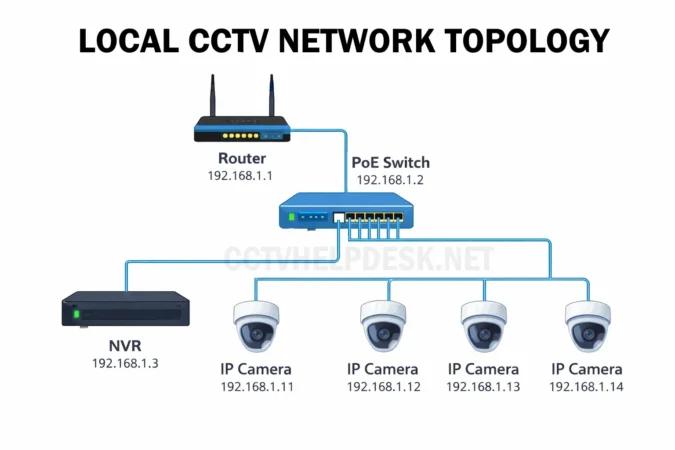
- IP cameras get a private IP: They talk to the NVR locally.
- NVR gets a private IP: It sits on the local network.
- Router LAN side has a private IP: Usually
192.168.1.1.
These IPs work only inside the local network and cannot be accessed directly from the outside internet.
For example:
If your NVR IP is 192.168.1.200, you can open it easily on a laptop inside the office network. But if you go home and type that into your browser, nothing will happen unless port forwarding or a cloud P2P service is configured.
Public IP Address
A Public IP is provided by your Internet Service Provider (ISP) like Comcast, Airtel, or Spectrum.
To check the public IP currently assigned to your router, open any browser on a connected device and visit https://whatismyip.com. The website will display your active public IP address, which is useful while configuring port forwarding or remote viewing.
This IP is the “front door” of the building and is used for remote viewing.
Example:
49.36.125.210103.78.XX.XX
When you access the CCTV system from a mobile phone while standing outside the office, your phone is actually connecting to the public IP of the router, which then passes you through to the NVR.
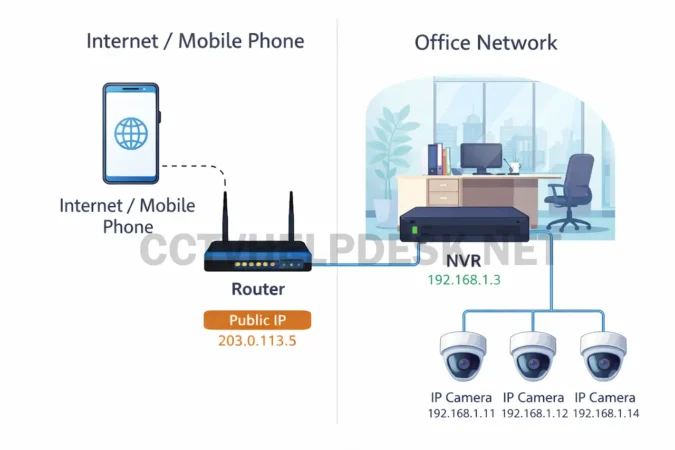
Important:
- Public IP may be static or dynamic.
- Some ISPs give a dynamic public IP which changes automatically every few days or when the modem reboots.
- For stable remote viewing (especially if using port forwarding instead of P2P cloud), many clients prefer to pay their ISP for a static public IP so it never changes.
Static IP Address
Static IP means manually assigning a fixed, permanent IP address to a device.
Example:
You manually set the camera IP as: 192.168.1.50
It will not change unless you physically log back in and change it.
In CCTV systems, we usually set:
- Static IP for NVR
- Static IP for IP cameras
Why?
Because if the IP changes, the NVR will lose its connection with the camera. The NVR is programmed to look for video at .50. If the camera suddenly decides to become .51, the NVR will just show a black screen.
Static IP is always recommended for:
- NVRs
- Main IP cameras
- Systems heavily relying on port forwarding
DHCP (Dynamic Host Configuration Protocol)
DHCP is a system where the internet router automatically assigns IP addresses to devices as they connect.
When DHCP is enabled:
- You connect the camera to the network.
- The router automatically gives it an IP.
- There is no need to manually assign anything.
This sounds incredibly easy for beginners. You just plug it in and it works!
But there is a huge problem:
If the router restarts after a power cut, the IP may change.
If the camera or NVR IP changes:
- The NVR may show the camera as offline.
- Port forwarding for remote viewing may stop working completely.
That is exactly why in professional CCTV installations, we heavily prefer Static IP instead of DHCP for our main security equipment. Leave DHCP for things like mobile phones and guest laptops.
Help Full Online Tools:
- PoE Switch Calculator – Find the Right Switch for CCTV Cameras
- Port Forwarding Tester | Test Port Forwarding for IP Camera, DVR, and NVR
- CCTV Bandwidth Calculator: Plan Your Network Like a Pro
What is CCTV IP Conflict?
An IP conflict happens when two different devices in the same network are accidentally given the exact same IP address.
Example:
- Camera 1 is manually set to ->
192.168.1.11 - Camera 2 is also manually set to ->
192.168.1.11
Now both devices are fighting over the same address.
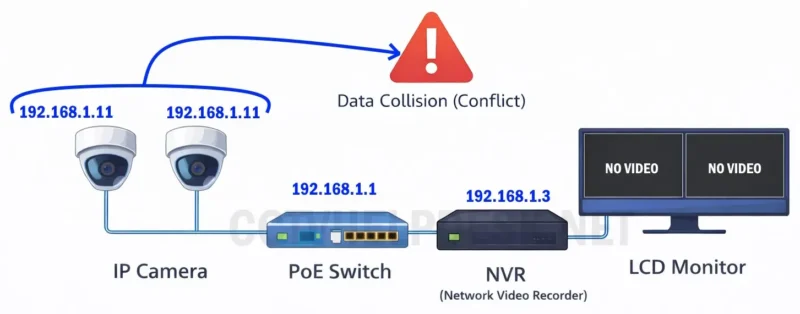
Result:
- One device may go completely offline.
- The NVR may not detect either camera properly.
- The network becomes unstable, and camera feeds might flicker back and forth between the two views.
IP conflict is a very common mistake in CCTV installations, especially for new techs.
Causes of IP Conflict in CCTV Network
Here are the most common reasons you will run into this headache:
1. Manual IP Assignment Without Checking
An installer sets the same IP to two cameras by mistake. It’s easy to do if you are rushing and forget which number you just typed into the last camera.
2. Mixing DHCP and Static IP
Let’s say one camera is manually set to 192.168.1.20. A week later, an employee brings a new laptop to work. The router’s DHCP doesn’t know you manually used .20 for a camera, so it automatically gives 192.168.1.20 to the laptop. Instantly, a conflict happens and the camera drops.
3. Copy-Paste Configuration
Sometimes technicians clone settings from one camera to another using batch tools to save time, but they forget to increment the IP address, resulting in multiple identical IPs.
4. Adding New Device in Existing Network
A new technician installs an extra camera without scanning the network or checking the existing IP range, accidentally stepping on the toes of an existing device.
How to Fix IP Conflict in DVR/NVR and IP Cameras
If cameras are dropping in and out, follow these steps to sort it out:
Step 1: Identify the Conflict
- Check which device is going offline randomly.
- Ping the IP from your laptop using the command prompt.
- Open the manufacturer’s camera search tool (like SADP or ConfigTool) to see if two MAC addresses show up under the same IP.
Step 2: Disconnect One Device
Unplug one of the cameras using that IP from the switch. If the network suddenly becomes stable and the other camera comes online perfectly, a conflict is confirmed.
Step 3: Assign Unique IP
Log into the device and manually assign a brand different, unused IP.
Example:
- Camera 1 ->
192.168.1.101 - Camera 2 ->
192.168.1.102
Step 4: Keep Proper IP Plan
Always follow a strict numbering system for every job site:
- NVR ->
192.168.1.200 - Cameras ->
192.168.1.101to150 - Printers/Office Gear ->
192.168.1.50
Keeping a block of numbers just for cameras avoids future problems.
Difference Between Static IP and DHCP in CCTV Use
Here is a quick breakdown of how they compare in the field:
| Feature | Static IP | DHCP (Dynamic IP) |
| IP Changes? | No | Yes (may change on reboot) |
| Stability | High | Medium to Low |
| Best For | NVR & IP Cameras | Temporary setups, mobile phones |
| Port Forwarding | Safe and Reliable | Risky (will break if IP changes) |
| Professional Install | Highly Recommended | Not recommended for core hardware |
For a professional CCTV installation:
Always use Static IP for cameras and the NVR. DHCP can be used temporarily during testing just to get a device online, but always lock it down to static before you leave the site.
Common Mistakes Made by CCTV Installers
These small mistakes create big service calls later:
- Not changing the default IP of all cameras: Leaving 5 cameras on the default
192.168.1.64guarantees a conflict. - Forgetting to disable DHCP in the camera: Sometimes a camera defaults to DHCP. If you don’t uncheck the box and make it static, it will wander off later.
- Not checking the IP range before installation: Blindly typing in an IP without knowing the customer’s network layout.
- Using the same subnet wrongly: Setting the camera to
192.168.0.xwhen the customer’s router is actually on192.168.1.x. They won’t talk to each other. - Not documenting IP addresses: Leaving no notes for the next guy (or yourself six months later).
- Port forwarding done on wrong local IP: Opening ports for an IP that doesn’t actually belong to the NVR.
Simple Troubleshooting Tips
Here are some practical field tips I personally follow on every job:
✔ Always Check Router IP First
Log into the router or use the ipconfig command on your laptop to check the LAN IP.
If the router is: 192.168.0.1
Then all your cameras should be: 192.168.0.xxx
✔ Keep Same Subnet
The first three parts of the IP address must match for devices to talk easily.
Example:
- Router ->
192.168.1.1 - Camera ->
192.168.1.120(Correct!)
✔ Use Camera Search Tool
Most brands provide a free search tool (like Hikvision SADP Tool, Dahua ConfigTool & CP Plus IP Finder Tool to detect all IP cameras on the network, even if they are on the wrong subnet.
✔ Keep a Written Record
Always maintain a notebook or an Excel file on your phone:
- Camera location (e.g., Front Door)
- IP address
- Username
- Password
✔ Restart After Configuration
After changing an IP address on a device, it is always a good idea to restart the device once to confirm the new connection is stable and locked in.
Final Words
Understanding IP addresses is basic but incredibly important for every CCTV technician. It is the foundation of a reliable system.
If your IP settings are correct:
- Cameras stay online 24/7.
- NVR records properly without missing frames.
- Remote view works smoothly for the customer.
- The client stays happy.
If your IP settings are wrong:
- Cameras drop offline randomly.
- Remote view fails when the client needs it most.
- Service calls and headaches increase.
So always take 10 extra minutes to properly plan your IP addressing before you start the installation. It will save you hours of stressful troubleshooting later. If you master IP basics, 70% of CCTV network problems become very easy to solve.